 Citadel
Deployments
Create and operate Citadel Deployments for single-container workloads.
Deployments let Citadel run and manage a single Docker container on a selected platform. Use a deployment when one image is enough and you do not need a multi-service Docker Compose project.
Use a stack instead when the workload needs multiple services, Compose networks, Compose volumes, or Git-backed Compose configuration.
To bring an existing standalone Docker container under Citadel management without recreating it first, see Adopt existing workloads.
Run one container
You need an online Docker Standalone Platform and an image name.
- Open Deployments, select Add Deployment, and choose a name and Platform.
- Choose External and a Registry, then enter the image and tag.
- Select at least one existing Network, then add the application's required ports and persistent storage.
- Select Save, then Deploy. Wait for the operation to finish.
- Open the Deployment to check its container and logs.
For a complete example, follow your first Deployment. The sections below explain the other settings. Saving alone does not update the running container.
Basic Setup
Create a deployment and choose:
- Name: an internal name for the workload
- Platform: the Docker platform where the container should run
- Image source:
External,Local, orBuild - Networks: one or more Docker networks to attach the container to
- Ports: optional host-to-container port mappings
- Volumes: optional named volumes or bind mounts
- Container variables: optional environment variables injected into the container
- Auto update: how Citadel should react to image updates
After saving the deployment, use Deploy to create the container. Editing a deployment changes the saved definition, but the running container is not changed until you deploy or redeploy it.
Image Source
External images are pulled from a registry during deploy.
Use this for normal deployments:
- Registry: the configured Citadel registry to pull from
- Image reference: the image and tag, for example
nginx:1.27orghcr.io/example/api:1.4.2
For registry setup, see Registries.
Local images are selected from images that already exist on the target Docker host.
Use local images when:
- the image was built directly on the platform
- the image is loaded by another process
- the platform cannot pull the image from a registry
Build images are produced by Citadel build projects.
Use this when the deployment should run images produced by a build:
- Image Source:
Build - Build: the build project that produces the image
- Redeploy On Build: automatically redeploy this deployment after the selected build succeeds
Redeploy On Build requires Team's Automated Operations capability. Without
it, a successful build advances the desired artifact, but an operator must
deploy it manually.
You can save a deployment before the selected build has a successful run. The form shows latest, desired, and applied artifacts. A successful build advances desired state; a successful deploy advances applied state. Deploy or redeploy succeeds only after the build has produced an image reference.
Citadel deploys the stored desired artifact and pins it to its digest when available. It falls back to the latest successful build only when the deployment has not resolved an artifact yet.
For build setup and webhook-triggered builds, see Builds.
Auto update is only available for external image sources. It is disabled for local images and for external images pinned by digest, such as nginx@sha256:....
Build images use Redeploy On Build instead of registry auto update.
Networks
Select the Docker networks the container should join. The networks must already exist on the target platform.
Use the same network for containers that need to communicate with each other. Use a public or proxy network when a reverse proxy needs to reach the deployment.
Ports
Ports publish container ports on the Docker host.
Examples:
8080:80/tcp
127.0.0.1:5432:5432/tcp
For local images, Citadel can detect exposed image ports and pre-fill mappings. Review the mappings before deploying; exposed image metadata does not always match the ports you want public on the host.
Only publish ports that must be reachable outside Docker networks. For internal service-to-service traffic, prefer Docker networks without host port publishing.
Volumes
Volumes mount persistent storage or host paths into the container.
Examples:
app_data:/data
/srv/app/config:/etc/app:ro
Use Docker named volumes for application data you want Citadel to track for backup policies.
Bind mounts are valid Docker mounts, but Citadel deployment backups only include Docker named volumes. Host paths such as /srv/app/config:/etc/app are not included in deployment volume backups.
Container Variables
Use Container Variables to inject environment variables into the container.
You can either expose a matching binding by name:
APP_ENV
POSTGRES_PASSWORD
Or map one runtime environment key to another Citadel binding:
DATABASE_PASSWORD=${POSTGRES_PASSWORD}
PUBLIC_URL=${APP_PUBLIC_URL}
Define referenced values on the deployment Bindings tab or as global bindings. At deploy time, Citadel resolves only the referenced keys, injects them into the container environment, and redacts secret values from logs and activity output.
For more detail, see Variables and secrets.
Auto Update
Auto update checks external image tags for new digests.
Disabled: do not check for updates.Notify Only: record update availability and emit an alert.Auto Deploy: pull the updated image and redeploy the container automatically.
Notify Only remains available in Community. Auto Deploy requires Team's
Operational Guardrails capability.
Citadel checks periodically. When an updated digest is found:
- Notify mode marks the deployment as having an update available.
- Auto Deploy mode recreates the container with the updated image.
- Failures emit deployment auto-deploy failure alerts when alert rules are configured.
Use Check for updates on a deployed external image to query its registry immediately. This manual check records whether a newer digest is available but does not pull, redeploy, or alert. It remains available when periodic update behavior is disabled.
On the Deployments page, use Updates available to show only deployments with a detected newer digest. This filter works with search, tags, and the Platform filter. Deployments that have not been checked or whose last check failed are not shown as having an available update.
Use Notify Only for production deployments until the image tag and rollback process are proven. Use explicit version tags for predictable updates.
Resources
Resource profiles set CPU and memory limits for the container.
Automatic: leave resource allocation to Docker.X-Small: 0.25 CPU, 256 MB RAM.Small: 0.5 CPU, 512 MB RAM.Medium: 0.5 CPU, 1 GB RAM.Large: 1 CPU, 2 GB RAM.X-Large: 2 CPU, 4 GB RAM.
Choose a limit when a workload should not be able to consume the host unexpectedly. Leave automatic for simple or trusted workloads where Docker defaults are acceptable.
Lifecycle
Lifecycle controls container restart and shutdown behavior.
Restart policy:
No: do not restart the container automatically.Always: restart whenever the container stops.Unless Stopped: restart unless a user manually stopped it.On Failure: restart only when the container exits with a non-zero code.
Stop signal:
SIGTERM: default graceful shutdown signal.SIGINT: interrupt-style graceful shutdown.SIGKILL: force stop immediately.
Stop timeout is the number of seconds Docker waits for shutdown before forcefully terminating the container.
For services, Unless Stopped or Always is usually appropriate. For one-off or diagnostic containers, use No.
Command And Labels
Command overrides the image default command.
Example:
--config=/etc/app/config.yml
--log-level=info
Use labels for user-defined Docker metadata:
com.example.owner=platform
com.example.service=api
Do not use labels reserved by Citadel.
Deploy, Redeploy, And State Actions
Use Deploy for the first apply of a created deployment.
Use Redeploy when you want Citadel to recreate the container from the saved deployment definition. Redeploy is useful after changing image, ports, volumes, variables, lifecycle, resources, command, or labels.
Runtime actions:
- Start starts a stopped deployment.
- Stop stops a healthy deployment.
- Pause pauses a running deployment.
- Resume resumes a paused deployment.
- Delete removes the deployment and its managed runtime container.
If a platform is disconnected, deploy and runtime actions can fail because Citadel cannot reach the Docker host.
Duplicate
Use Duplicate to create a new deployment draft from an existing deployment.
The duplicate flow:
- opens the normal add form
- copies editable configuration into a draft
- shows warnings for platform-specific values such as host bind mounts
- waits for you to save before creating anything
Runtime state, container IDs, history, generated credentials, and resolved secret values are not copied.
Deployment-scoped variables and secret references are copied when you save the duplicate. Global bindings continue to be inherited. You need permission to view and manage resource bindings to copy them.
Adopt An Existing Container
Use Adopt as Deployment from an unmanaged standalone container to create a Deployment without restarting or recreating the current container. Citadel opens the normal add form with a configuration draft and keeps the source Platform fixed.
Adoption does not deploy anything. A later Redeploy can recreate the container from the reviewed definition. Containers that belong to Docker Compose must be imported as complete Stacks instead.
See Adopt existing workloads for eligibility, secret handling, unsupported runtime settings, and first Redeploy guidance.
Backups
Deployment backup policies back up Docker named volumes used by the deployment.
Only named volumes are included. Bind mounts are not included because they are host filesystem paths, not Docker volumes.
For backup setup and restore behavior, see Backups.
Diagnose a Failed Deployment
During Deploy or Redeploy, read the progress sheet for the operation's output and error. If you have closed it, open the Deployment's Activities tab or the main Activities page and select the failed Deployment Applied event. The event details show the recorded configuration and failure message.
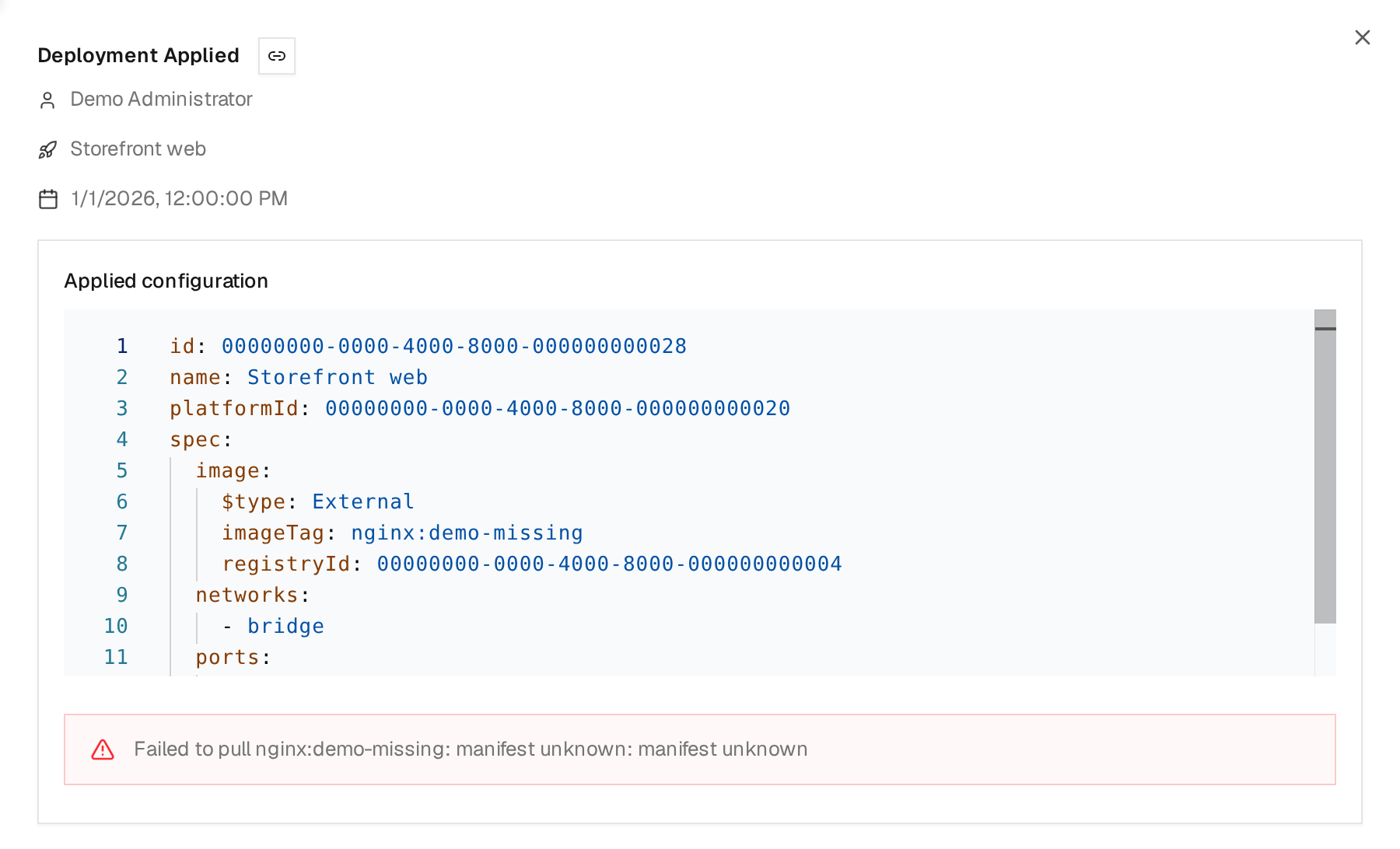
This demo failure refers to nginx:demo-missing. Compare the image reference in
Applied configuration with the failure message, correct the image tag under
Config, save, and deploy again. An activity named Deployment Applied can
have Failure status; its name alone does not indicate success.
Container logs describe the application's output after a container starts. A failure while pulling an image can occur before there is a container to inspect.
When To Use Deployments
Use deployments for:
- one-container services
- utility containers
- simple reverse-proxy targets
- workloads that do not need Docker Compose
Use stacks for:
- multiple containers deployed together
- shared Compose networks and volumes
- Compose overrides or advanced Compose syntax
- Git-backed deployment workflows