 Citadel
Automation actions
Create, authorize, run, and troubleshoot Citadel automation actions.
Automation Actions let you run small TypeScript scripts inside Citadel.
Use actions for operational tasks that you want to run from Citadel, schedule, or trigger from another system.
Examples:
- apply a stack
- run a maintenance check
- call Citadel APIs in a repeatable way
- accept a webhook payload and dispatch a Citadel operation
Actions run through Citadel permissions. They are not raw shell scripts and they do not get host or Docker access.
Run a prepared action
An Action is a small script. Ask your application's maintainer to prepare and review it if you do not write TypeScript.
- Open Automation and add an Action.
- Enter its code and choose an enabled Run As account with only the access it needs.
- Save it, run a test, and review the logs before using it for a live operation.
- Start an enabled Action manually and check its Runs tab.
A test can perform real operations allowed by its permissions; use a safe target. The sections below are for the person maintaining the script.
Open Actions
Open:
AutomationThe list shows:
- action name and status
- schedule state
- webhook state
- latest run
- row actions
The status dot near the name reflects whether the action is enabled and whether the latest run is active or failed.
Create An Action
Select:
Automation -> Add ActionSet:
Name: stable action name shown in activity and run historyDescription: optional note for other adminsEnabled: whether manual and scheduled runs are allowedCode: TypeScript code executed by DenoDefault Args: JSON object available asargsRun As: enabled User or Service Account whose current Citadel permissions are used for runsTimeout: maximum run duration in secondsAlert On Failure: record failed or timed-out runs as alert-worthy events
Save the action before using manual, scheduled, or webhook triggers.
Script Globals
Action code can use these globals:
citadel
args
run
console
args is the JSON object configured on the action or passed by a trigger.
run contains run metadata:
console.log(run.id);
console.log(run.actionName);
console.log(run.trigger);
citadel is a preconfigured helper for Citadel API calls. You do not need to add a base URL or token.
const deployments = await citadel.get("/api/v1/deployments");
console.log(deployments);
The code editor knows the built-in globals and uses Citadel's generated API types for completions on citadel, args, and run.
Use the generated operation names through citadel.api:
const platforms = await citadel.api.listPlatforms();
const repositories = await citadel.api.listGitRepositories();
console.log(platforms, repositories);
For deployment and stack operations, replace the placeholder IDs below with real resource IDs. Rollback also needs the ID of a previous healthy release:
await citadel.api.applyDeployment({
  id: "<deployment-id>"
});

await citadel.api.applyStack({
  id: "<stack-id>"
});

await citadel.api.rollbackStack({
  stackId: "<stack-id>",
  releaseId: "<healthy-release-id>"
});
These are separate examples; include only the operation your Action needs.
The request body must match the Citadel API endpoint. The current runtime
does not expose the apply and rollback shortcuts or the repositories
alias suggested by some editor completions; use the operation names above.
Arguments
Default args must be a JSON object.
Example:
{
  "stackId": "019f0000-0000-7000-9000-000000000000",
  "dryRun": true
}
Use them in code:
const stackId = args.stackId;
if (typeof stackId !== "string" || !stackId) {
  throw new Error("Set stackId to the Stack's ID in Default Args.");
}

if (args.dryRun) {
  console.log("Dry run only");
} else {
  await citadel.api.applyStack({ id: stackId });
}
Test Run
Use Test on the action edit page to queue a test run.
Test runs:
- create an action run with trigger
Test - can run even when the action is disabled
- use the saved action code and default args
- use the configured Run As identity
- write logs to the Runs tab
Use test runs before enabling schedules or webhooks.
Manual Run
Use Run to queue a normal manual run.
Manual runs require the action to be enabled.
If the same action is already running, Citadel rejects the new run instead of running the same action twice.
Manual and test runs show live output in the progress sheet. Keep the connection open until the run finishes; disconnecting from an interactive run requests cancellation. Cancellation does not undo operations the script has already completed. Check the Runs tab before retrying.
Schedule
Schedules require Team's Automated Operations capability.
Enable Schedule to run an action automatically.
Set:
EnabledCronTime Zone
Example cron values:
*/15 * * * *     every 15 minutes
0 * * * *        hourly
0 2 * * *        daily at 02:00
0 2 * * 1        Mondays at 02:00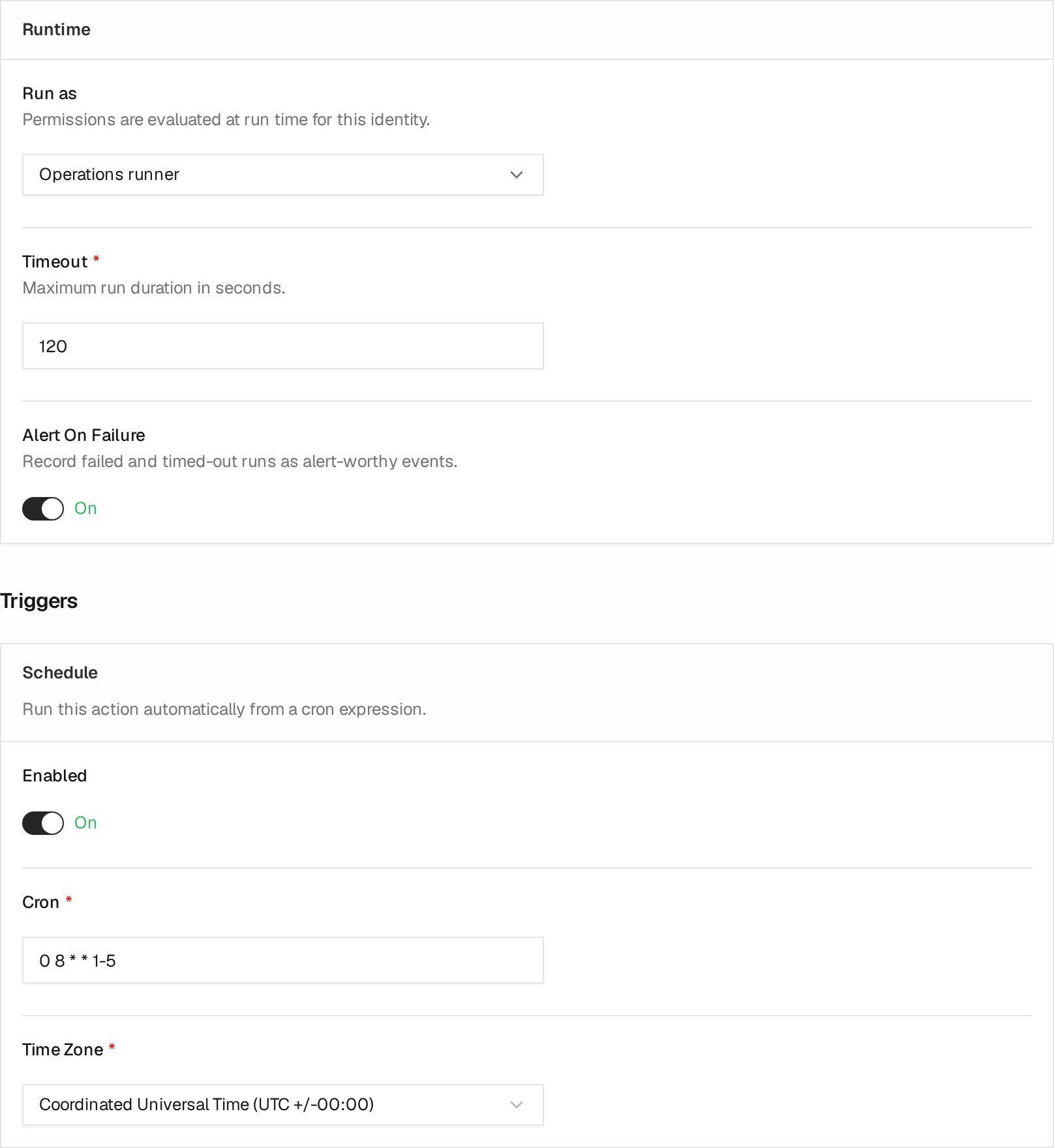
This demo Action uses the Operations runner identity, a 120-second timeout,
and 0 8 * * 1-5 to run at 08:00 UTC on weekdays. Review Run as and its
permissions together with the schedule before enabling unattended execution.
When a scheduled run is due, Citadel queues an action run with trigger Schedule.
If the action is already running, Citadel records a rejected run instead of starting a duplicate.
Webhook
Webhook-triggered execution requires Team's Automated Operations capability.
Enable Webhook to let a Git webhook queue the action.
For the shared listener model, authentication options, URL shape, and troubleshooting, see Webhooks.
Select the provider and authentication format, set an optional branch filter, and copy the listener URL into the Git provider webhook settings.
Webhook URL shape:
https://citadel.example.com/listener/github/automation-action/<action-id>/runFor GitLab, use /listener/gitlab/automation-action/<action-id>/run.
If the request body is a JSON object, Citadel passes it to the action as args. Push event metadata remains available in the payload, and the branch filter applies to the ref branch.
Example webhook body:
{
  "ref": "refs/heads/main",
  "after": "9fceb02...",
  "repository": {
    "full_name": "acme/app"
  }
}
Action code:
const branch = args.ref?.replace("refs/heads/", "");
console.log(`Triggered by ${args.repository?.full_name} on ${branch}`);
Runs Tab
The Runs tab shows recent action runs.
Columns include:
- status
- trigger
- queued time
- duration
- exit code
Select the log button on a run to inspect logs.
Run statuses:
Queued: waiting for a workerRunning: Deno process is activeSucceeded: process exited successfullyFailed: process exited with an errorTimedOut: timeout was reachedCancelled: cancellation was requestedRejected: Citadel refused to start the run
Logs include output from:
console.log()
console.error()
Citadel caps logs and redacts obvious sensitive values such as bearer tokens and password-like fields.
Activities Tab
The Activities tab shows audit history for the action.
Activity events include:
- created
- updated
- renamed
- deleted
- enabled or disabled
- run queued
- run started
- run succeeded
- run failed
- run timed out
- run cancelled
- run rejected
Updated action events show a Monaco diff of the old and new action values.
Permissions
Actions use the AutomationAction permission resource.
Callers need permission to:
- view actions
- create actions
- update actions
- delete actions
- run or test actions
An action runs as its configured Run As User or Service Account. Citadel checks that Actor's current roles, enabled Team memberships, resource access, and license capabilities when the Action calls Citadel APIs.
Manual and API-triggered run history distinguishes the identity that requested the run from the identity that executed it. For example:
Triggered by ci-release
Ran as production-deployer
Selecting a Service Account or changing executable Action configuration under that account requires permission to Use it. Running an already saved Action requires Execute permission on the Action. The run request cannot replace its saved code or run-as identity.
Using a Service Account requires Team's Custom access control capability.
Schedules and webhook-triggered execution under that account additionally
require Automated Operations. If the Custom access control capability becomes
unavailable, Citadel preserves the binding as Paused by license and rejects
new runs before starting the script.
Citadel does not store a User access/refresh token or a persistent Service Account token inside the Action. It creates a restricted, short-lived token for each run.
Use a least-privileged Service Account for schedules and webhooks so unattended execution does not depend on a human account. See Service Accounts.
Safety Notes
Actions are TypeScript scripts, not shell scripts.
Actions cannot:
- run shell commands
- use terminal or exec endpoints
- access arbitrary host files
- access arbitrary networks
- read Citadel secrets directly
- modify automation endpoints through the automation run token
Use actions for Citadel API automation, not host administration.
Troubleshooting
Action is already in progress.
The same action already has a queued or running run. Wait for it to finish or cancel the active run.
Automations are disabled.
An administrator disabled automation globally in Citadel configuration.
Deno executable was not found.
The automation runtime is unavailable. Contact a Citadel administrator.
Default arguments must be a valid JSON object.
The args editor must contain an object such as {} or { "stackId": "..." }, not an array or plain string.
Action timed out.
The script ran longer than the configured timeout. Increase the timeout or change the script to complete faster.
Forbidden from a Citadel API call.
The configured run-as User or Service Account does not currently have permission for the operation the script attempted.
Run-as identity is disabled or unavailable.
Enable the configured identity or select another enabled User or Service Account. Citadel does not fall back to the Action creator or System.
License Availability
Community can:
- create and edit action definitions
- test an action
- start an enabled action manually
- view runs and logs
Schedules and webhook-triggered action execution require Team's
Automated Operations capability. A webhook may be received and authenticated
without that capability, but it cannot queue the action run.
If the capability becomes unavailable, existing schedule and webhook configuration remains stored and is shown as paused. Manual and test runs remain available.