 Citadel
Backups
Configure backup repositories, policies, runs, restores, and Swarm volume coverage.
Citadel provides backup and recovery for its control plane and Docker named volumes, with snapshots stored in restic-compatible repositories.
Make your first backup
A backup needs a repository (where it is stored) and a policy (what it saves).
- Open Backups and create a backup repository. For recovery from host failure, use storage away from that host.
- For a new repository, select Initialize, then Validate to confirm it is ready.
- Create a policy for the Citadel control plane or for the application's named Docker volumes.
- Start the backup manually and wait for its run to finish successfully.
- Check that the snapshot appears and record how to access the repository.
- Plan a restore test before relying on the backup.
A control-plane backup saves Citadel's own installation. It does not replace backups of application volumes. Volume restore is available in Citadel; control-plane recovery follows the separate recovery guide. Keep the repository password safe: it is needed to recover encrypted snapshots.
Backup Repositories
A backup repository is the destination where snapshots are stored.
Supported repository types:
- Filesystem: stores snapshots in a folder.
- S3 compatible: stores snapshots in an S3-compatible bucket such as MinIO, AWS S3, or another compatible service.
For filesystem repositories:
- Core location stores backups on the Citadel Core host or container volume.
- Platform location stores backups on the selected Docker host when it uses the Local connector.
Choose the repository location based on where the backup runs:
- Use Core filesystem for Citadel backups and Docker volume backups from a local platform.
- Use Platform filesystem for local-platform workload backups when the repository folder is on that Docker host.
- Use S3 compatible when backups should be independent of the Core host and platform host filesystem.
Remote regular Agent, Edge Agent, and Swarm Node Agent backup execution currently requires S3-compatible storage. Filesystem repository fields may appear in the UI, but the Agent executor rejects them. Use filesystem repositories only for Citadel control-plane backups or workloads reached through the Local connector.
S3-Compatible Repository Settings
S3-compatible repositories use restic over an S3-compatible API. The bucket stores restic's encrypted repository layout, not plain backup files.
Common repository objects include:
config: repository metadatakeys/: encrypted restic key materialdata/: encrypted content packsindex/: content indexessnapshots/: snapshot metadata
When creating an S3-compatible repository, configure:
- Endpoint: the S3 API URL, such as
https://s3.example.comorhttp://192.168.1.50:9000 - Bucket: the bucket name, such as
citadel-backups - Prefix: optional path inside the bucket for this repository
- Region: required by some providers;
us-east-1is usually fine for local MinIO or RustFS-style stores - Bucket Lookup: use
Pathfor local S3-compatible stores unless DNS-style bucket hosts are configured - Allow Insecure HTTP: enable only for local or private HTTP endpoints
- Password secret: the restic repository password used to encrypt and unlock backups
- Access Key Secret: the S3 access key
- Secret Key Secret: the S3 secret key
- Session Token Secret: optional, only for temporary S3 credentials
The restic password is separate from the S3 credentials. Losing the password secret means existing snapshots in that repository cannot be restored.
For Docker volume, stack, deployment, and Swarm Service backups, the S3 endpoint must be reachable from every helper container that executes the policy. For Citadel backups, the S3 endpoint must be reachable from Citadel Core.
Examples:
- If Citadel Core and the local Docker platform run on Docker Desktop,
http://host.docker.internal:9000can be useful for a local RustFS or MinIO test service exposed on the host. - If a regular agent or edge agent runs on another machine, do not use
host.docker.internalunless that name is valid on that machine. Use a LAN-reachable IP address or DNS name, such ashttp://192.168.1.50:9000orhttps://s3.internal.example.com.
Filesystem Repository Paths
Filesystem repository paths are resolved where the repository is executed:
- Core filesystem paths are on the Citadel Core host or inside the Core container volume.
- Platform filesystem paths are on the Docker host reached through the Local connector.
For example, a Platform filesystem repository path of /srv/backup-01 on a local
platform stores the restic repository on that Docker host. The repository contains
folders such as config, data, index, keys, locks, and snapshots.
When Citadel runs against Docker Desktop on Windows, Linux-style paths such as /srv/backup-01 are usually inside Docker Desktop's Linux VM filesystem. They will not appear as C:\srv\backup-01 or D:\srv\backup-01 in Windows Explorer unless that path is explicitly backed by a shared Windows bind mount.
To inspect a local Platform filesystem repository, run this from your Citadel
installation directory on the same Docker host. It uses the running Core's
actual image, even when CITADEL_IMAGE is blank in .env:
core_image=$(docker inspect --format '{{.Image}}' "$(docker compose ps -q server)")
docker run --rm -it --entrypoint sh --mount type=bind,source=/srv/backup-01,target=/backup,readonly "$core_image"
Then inside the container:
ls -la /backupCheck the path carefully. /srv/backup-01 and /serv/backup-01 are different paths.
After creating a repository:
- Select Initialize if the repository is new.
- Select Validate to confirm Citadel can read the repository.
- Use Check for periodic repository health checks.
- Use Prune when you want restic to remove unreferenced data after retention changes.
Backup Policies
A backup policy defines what to back up, where to store it, and when it should run.
The policy's Run As identity supplies permissions for scheduled and webhook-triggered runs. Choose an enabled User or, preferably for unattended operation, a least-privileged Service Account. Manual runs use the authenticated caller; runs started by an Automation Action use that Action run's identity.
A Service Account run-as identity requires Team's Custom access control
capability. Scheduled and webhook-triggered policies additionally require
Automated Operations. If the Custom access control capability becomes
unavailable, Citadel preserves the binding as Paused by license and does not
start new runs under it.
See Service Accounts for creating an account, assigning access, and understanding Use permission. Backup Policies never store the Service Account's persistent API token.
Supported sources:
- Citadel backup: creates a PostgreSQL logical dump and packages the file-backed keys required to recover the Citadel control plane.
- Docker Volume: backs up one selected Docker named volume.
- Stack: backs up all resolved Docker named volumes used by a stack.
- Deployment: backs up all resolved Docker named volumes used by a deployment.
- Swarm Service: backs up the supported node-local named volumes mounted by the current Tasks of a managed Swarm Service.
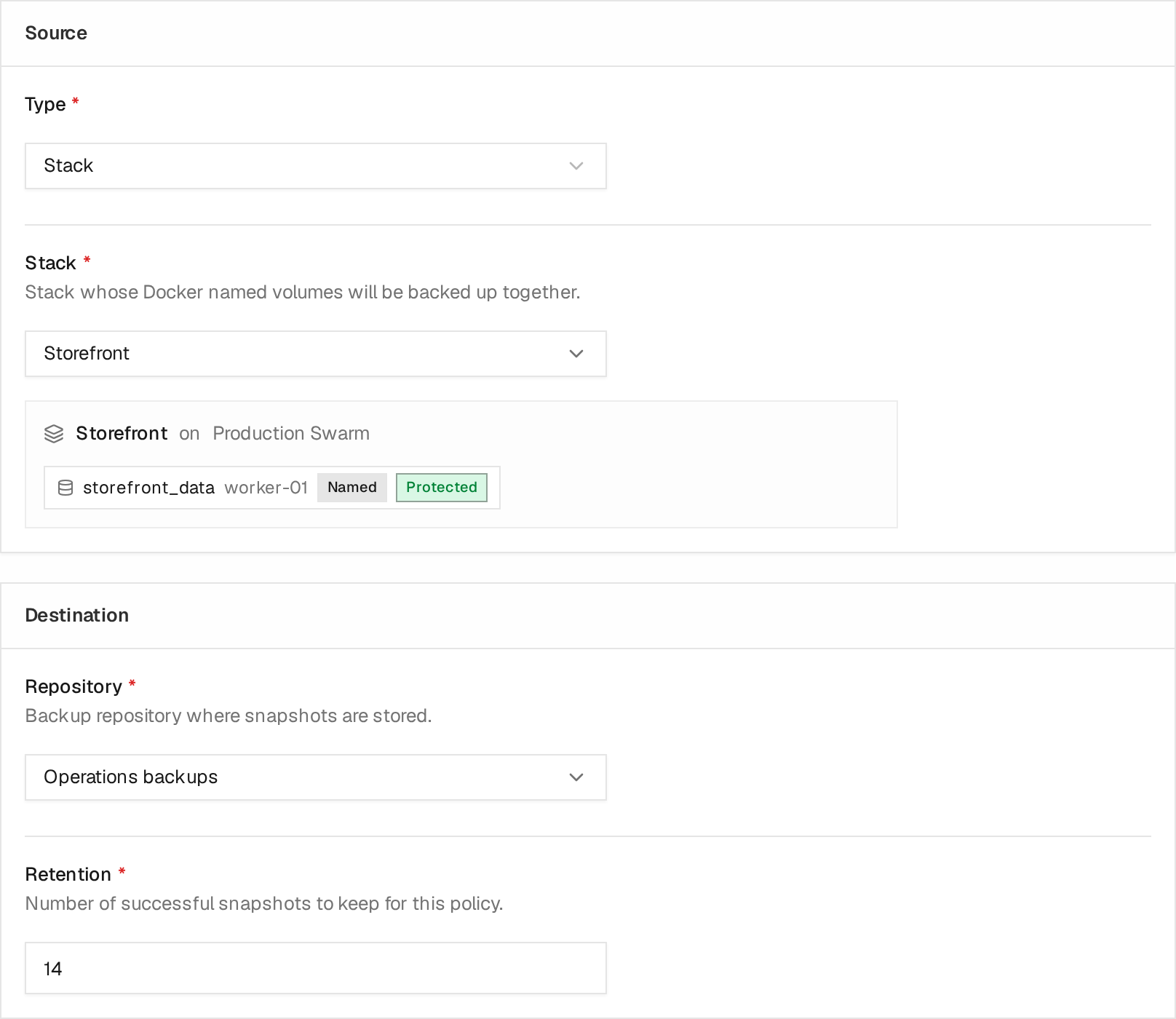
Example policy using demo resources. Review the resolved volume and Node under Source, then choose the repository and retention under Destination. The example keeps 14 successful snapshots. Protected indicates backup coverage for that volume; inspect completed runs to confirm successful backups.
Backup Counts
The main Backups page lists every backup policy in the Citadel instance. An individual platform's Backups summary only counts policies whose source belongs to that platform:
- Docker volume policies created for the platform
- Stack policies whose stack runs on the platform
- Deployment policies whose deployment runs on the platform
- Swarm Service policies whose managed Service runs on the platform
Citadel control-plane backups are instance-wide and do not belong to a Docker platform. They appear on the main Backups page but are not included in any platform's backup count. For example, one Citadel backup and one volume backup produce a total of two policies on the main page and one policy on the volume's platform.
Only Docker named volumes are backed up. Bind mounts such as ./data:/app/data or /host/path:/data are host paths, not Docker volumes, and are not included in Docker volume, stack, or deployment backups.
A Citadel backup does not archive all of /app/data. Git caches, stack
workspaces, automation working directories, logs, and backup staging files are
recreated from database state or external systems and are deliberately
excluded.
If the JWT or local secret-encryption key is supplied through external configuration, its plaintext value is not copied into the snapshot. The manifest records that dependency. Preserve the external value separately or the recovered installation will not be able to authenticate existing sessions or decrypt stored credentials.
The official Citadel Core image includes pg_dump. Native installations and
custom images must provide a PostgreSQL client that supports the configured
server version. Set Backups__PostgresDumpPath when pg_dump is not available
on PATH.
Docker Platform Backups
Backups can run against:
- Local platforms
- Regular agent platforms
- Edge agent platforms
- Docker Swarm Nodes covered by Citadel Node Agents
For Docker volume, stack, deployment, and Swarm Service backups:
- S3-compatible repositories run from the target platform and upload directly to the bucket.
- Platform filesystem repositories are supported through the Local connector and write to the configured host path.
- Core filesystem repositories are only valid for Citadel backups and local-platform backups.
This means Citadel mounts Docker named volumes through the platform's Docker daemon, then runs restic in the backup helper container. For regular agent and edge agent platforms, this avoids routing remote volume contents through Citadel Core. For local Docker Desktop platforms, it also avoids relying on Docker's internal /var/lib/docker/volumes/... paths being visible to the host.
Docker Swarm
Citadel supports node-scoped backup of Docker Swarm local named volumes. A Swarm volume is identified by its Platform, owning Node, and volume name. Equal volume names on two Nodes are treated as different backup sources.
Supported Swarm sources are:
- one named volume selected on an explicit Node
- a managed Swarm Stack, resolved from its current Services and Tasks
- a managed Swarm Service, resolved from its current Tasks
Swarm backup requires:
- a usable connection to every required Node: the existing manager connection covers that manager, and node agents cover other Nodes
- current, stable Task placement with all desired Tasks running
- Docker-managed named volumes using the
localdriver without driver options - an S3-compatible backup repository reachable from every required Node
- Live consistency
Citadel rejects stale or incomplete placement, missing Node coverage, scaled-to-zero workloads, cluster volumes, volume-plugin storage, and local volumes configured with driver options. Bind mounts, tmpfs, container writable layers, Docker Secrets, and Docker Configs are not included.
For a Stack or Service, snapshots are created one volume at a time. They are crash-consistent at best and do not represent one atomic point in time across all Nodes. A failed child marks the workload run as failed, while snapshots already completed remain available for individual restore.
Keep a Citadel control-plane backup alongside workload-volume policies. The control-plane backup protects Citadel configuration, bindings, encrypted secrets, and recovery assets; it does not replace an application-data backup.
Running A Backup
Open Backups, select a policy, and use Run. Citadel shows a progress sheet with the run status and restic summary.
Successful runs show:
- Snapshot count or snapshot ID
- Files processed
- Bytes scanned and added
- Any warnings
If a policy contains multiple volumes, Citadel creates one backup item per volume so each volume has its own status and snapshot metadata.
The policy Runs tab contains backup and restore execution history and logs. The Activities tab records policy creation, configuration changes, renames, and archival actions.
Scheduled Backups
Scheduled backups require Team's Automated Operations capability.
Configure the policy schedule and timezone when Citadel should queue backups without an operator. If the capability becomes unavailable, Citadel preserves the schedule but does not queue new scheduled runs. Manual backup and restore remain available.
Webhook Triggers
Webhook-triggered backups require Team's Automated Operations capability.
Enable Webhook on a backup policy when an external system should queue the backup.
For the shared listener model, authentication options, URL shape, and troubleshooting, see Webhooks.
Common uses:
- run a backup before a deployment pipeline updates a stack
- run a backup before scheduled maintenance
- let an external scheduler trigger a policy without using Citadel's cron schedule
After the policy is saved, copy the listener URL from the Webhook section into the external provider. Citadel validates the configured provider signature or token when a secret is set, then queues a normal backup run.
Webhook runs use the policy's Run As User or Service Account and appear in the same run history as manual and scheduled runs. The webhook secret authenticates the delivery; it is not the execution identity. Disabled policies do not run from webhooks.
Retention
The Keep last successful setting controls how many successful snapshots Citadel keeps for a policy.
When retention is enabled, Citadel runs restic retention after the backup completes. A retention failure is reported as a warning so the backup snapshot itself is still recorded.
Restores
Docker volume snapshots can be restored from a backup run into a Docker named volume.
Open a backup policy, go to Runs, and select the restore action on an available Docker volume backup run. Citadel opens a restore dialog and then streams progress in a sheet.
The target name is pre-filled from the selected source volume. Enter a new Target Volume name to restore a separate copy, and leave Overwrite existing target volume disabled. This keeps the original volume untouched.
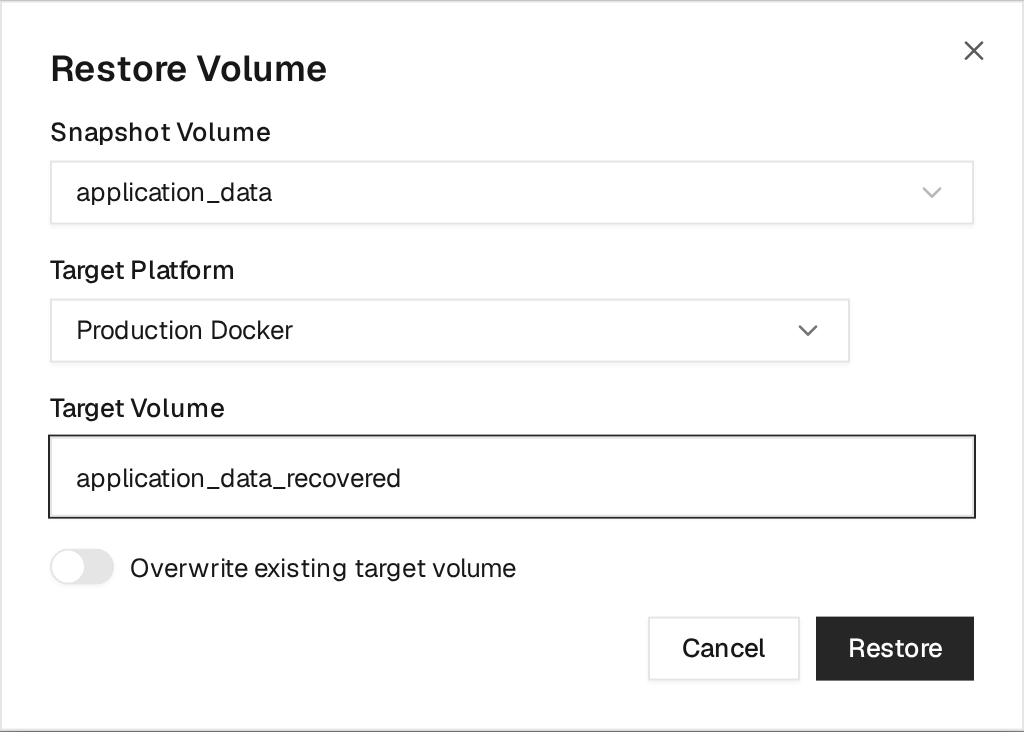
This demo backup contains two volume snapshots. Snapshot Volume selects the
one to restore; Target Platform and Target Volume specify where it goes.
The example restores application_data as application_data_recovered. Review
all three before selecting Restore.
Overwrite restore is destructive. When Overwrite existing target volume is enabled, Citadel deletes and recreates the target volume before restoring the snapshot. The UI requires you to type the exact target volume name before the restore can start. Citadel rejects overwrite when the target volume is currently in use.
Restore history is shown in the same Runs tab under Restore runs. Use the log action on a restore run to inspect the restore output after the progress sheet is closed.
Repository and platform rules for restore:
- A Core filesystem repository can restore to the local platform only.
- A Platform filesystem repository restores on the same local platform that owns that repository path. Agent-based filesystem restore is not supported.
- An S3-compatible repository can restore to local, regular agent, or edge agent platforms because the restore runs from the target platform.
- A Swarm child snapshot can be restored only to a new named volume on an explicit current Node. Citadel does not overwrite a Swarm volume or automatically attach the restored volume to a Stack or Service.
- Citadel control-plane snapshots are restored offline while Core is stopped. They are not restored into a Docker volume through the web UI.
For the PostgreSQL dump, security assets, clean-environment restore sequence, and recovery drill requirements, see Control-plane recovery.
Alerts
Backup policies can alert on failure when Alert on failure is enabled. Delivery is configured through Alert Rules and Alert Channels.
Practical Recommendations
Use S3-compatible storage for remote platforms, edge agents, and Docker Swarm. It keeps the backup path independent from where Citadel Core is running and avoids requiring shared host folders.
For Swarm, volume names alone do not identify the data: two nodes can have different local volumes with the same name. Citadel uses the selected node for backup and restore. If that node's connection is unavailable, the operation fails instead of reading or restoring a same-named volume on another node.
Use filesystem repositories for simple local setups. Use S3-compatible storage when execution goes through an Agent, even if that Agent runs on the Core host.
License Availability
Community can:
- create and manage backup repositories
- create backup policy definitions
- start backups manually
- restore Docker volume backups
- view backup and restore history and logs
Backup schedules and webhook-triggered backup execution require Team's
Automated Operations capability. If the capability becomes unavailable,
configured triggers remain stored but pause. Manual backup and restore remain
available.