 Citadel
Alert rules
Configure alert rules, delivery channels, evaluation, and recovery behavior.
Alert rules let Citadel record alert events and send notifications when platform, deployment, stack, webhook, or automation conditions match.
Notifications are delivered through notification channels. The Citadel server image includes notification delivery support, so normal Docker installs do not need any extra notification service.
Receive your first notification
- Open Settings → Alert Rules.
- Add a Notification Channel for your preferred destination.
- Use Send Test Notification, confirm it arrives, then Save the channel.
- Assign the channel to a suitable built-in rule and enable the rule.
- Use Alerts to review events and delivery results.
Community includes the built-in system rules and notification channels. Creating custom rules and changing advanced rule behavior require Advanced Alerting. The provider setup below explains where to obtain each destination URL. See License Availability for the full feature breakdown.
Before You Start
Channel URLs often contain webhook IDs, tokens, or bot credentials. Treat them as secrets.
Use a separate webhook or bot token for Citadel when the destination service supports it. If the URL is exposed later, you can revoke only the Citadel webhook or token without breaking other integrations.
Notification Channels
- Open Settings → Alert Rules and select Add Channel in the Notification Channels section.
- Enter a descriptive Name, such as
Operations email. - Select the Type and enter the Channel URL using the matching setup below.
- Leave Is Active enabled to allow alert delivery.
- Select Send Test Notification and check the destination for the message.
- Select Save. Testing uses the values in the dialog; it does not save the channel.
- Open a rule, select the channel under Notification Channels, enable the rule, and save it.
A saved channel does not receive alerts until it is assigned to an enabled rule. You can reuse a channel across rules or select several channels for one rule. Notifications are sent by the Citadel server, so the destination must be reachable from the server's container.
Channel URL Format
The channel URL tells Citadel which service to use and which token, webhook, topic, or chat to send to.
Most URLs follow this shape:
service://credentials@destination/path?optionsReplace placeholder values such as <token>, <webhook-id>, and <chat-id> with the values from the destination service. If a token contains special URL characters such as @, /, ?, &, or #, URL-encode that value before saving it.
Configure Common Channels
Citadel uses Shoutrrr service URLs. Select the matching Type in Citadel, then enter the URL described below. The screenshots show Citadel's actual forms with demonstration values; replace all example credentials and destinations with your own.
Email (SMTP)
Select Email to deliver notifications through an SMTP server.
- Obtain your provider's SMTP hostname, port, credentials, and an authorized sender address. Use an application password if your provider requires one.
- Enter the sender in
fromand the recipient into. - For port 587 with required STARTTLS, use:
smtp://<username>:<password>@<smtp-host>:587/?from=alerts@example.com&to=ops@example.com&requirestarttls=yesFor port 465 with implicit TLS, use:
smtp://<username>:<password>@<smtp-host>:465/?from=alerts@example.com&to=ops@example.com&encryption=ImplicitTLSUse the port and authentication method specified by your provider. Add
&auth=Login if it requires LOGIN authentication. Separate multiple recipients
with commas: to=ops@example.com,oncall@example.com.
URL-encode credentials before inserting them: a username of alerts@example.com
becomes alerts%40example.com, and a password containing # uses %23.
See the SMTP reference for additional authentication and sender options.
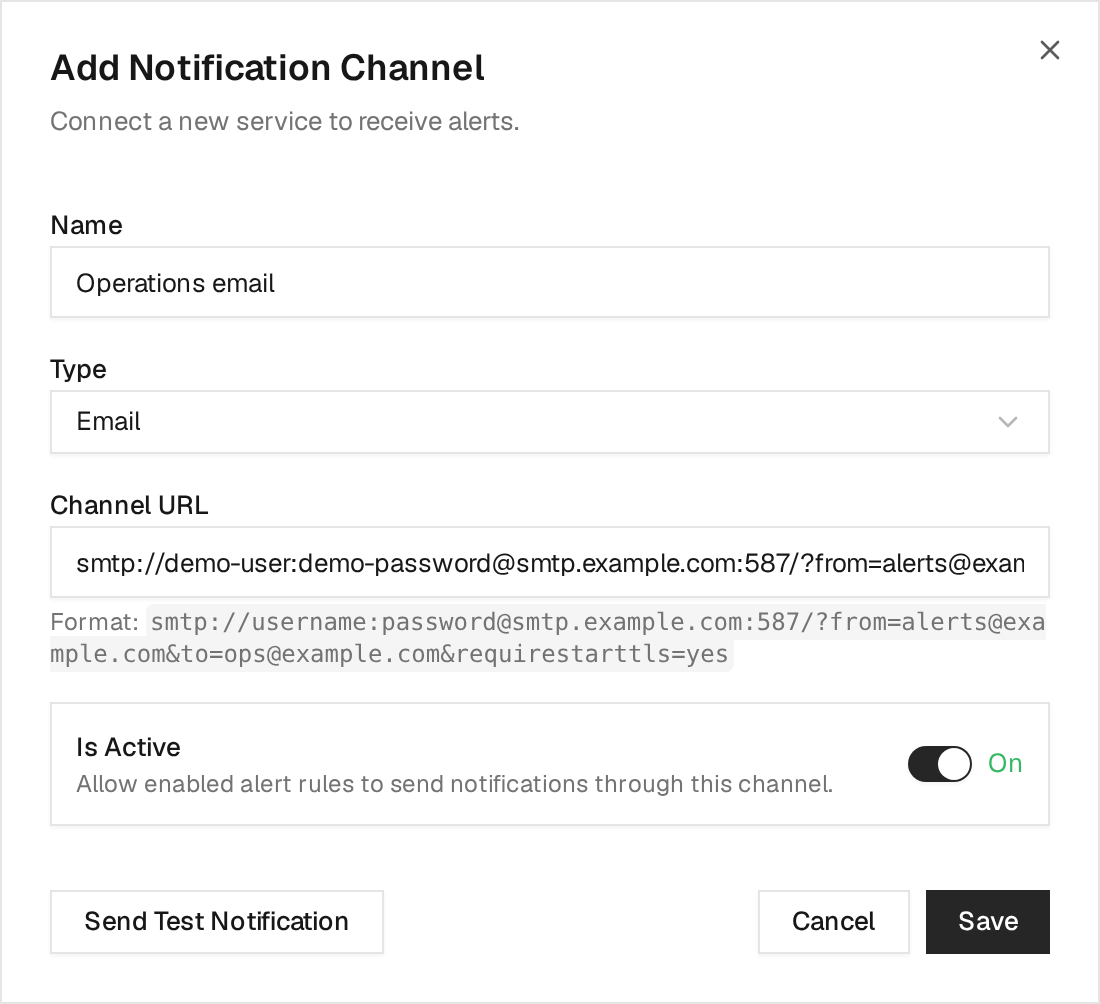
Select Send Test Notification, check the recipient's inbox and spam folder, then Save and assign the channel to a rule.
Discord
In Discord:
- Open the server settings.
- Go to
Integrations -> Webhooks. - Create a webhook for the target channel.
- Copy the webhook URL.
Discord webhook URLs look like:
https://discord.com/api/webhooks/<webhook-id>/<webhook-token>In Citadel:
- Type:
Discord - Channel URL:
discord://<webhook-token>@<webhook-id>The token goes before @; the numeric webhook ID goes after it. Keep the webhook
in a channel intended for operational notifications.
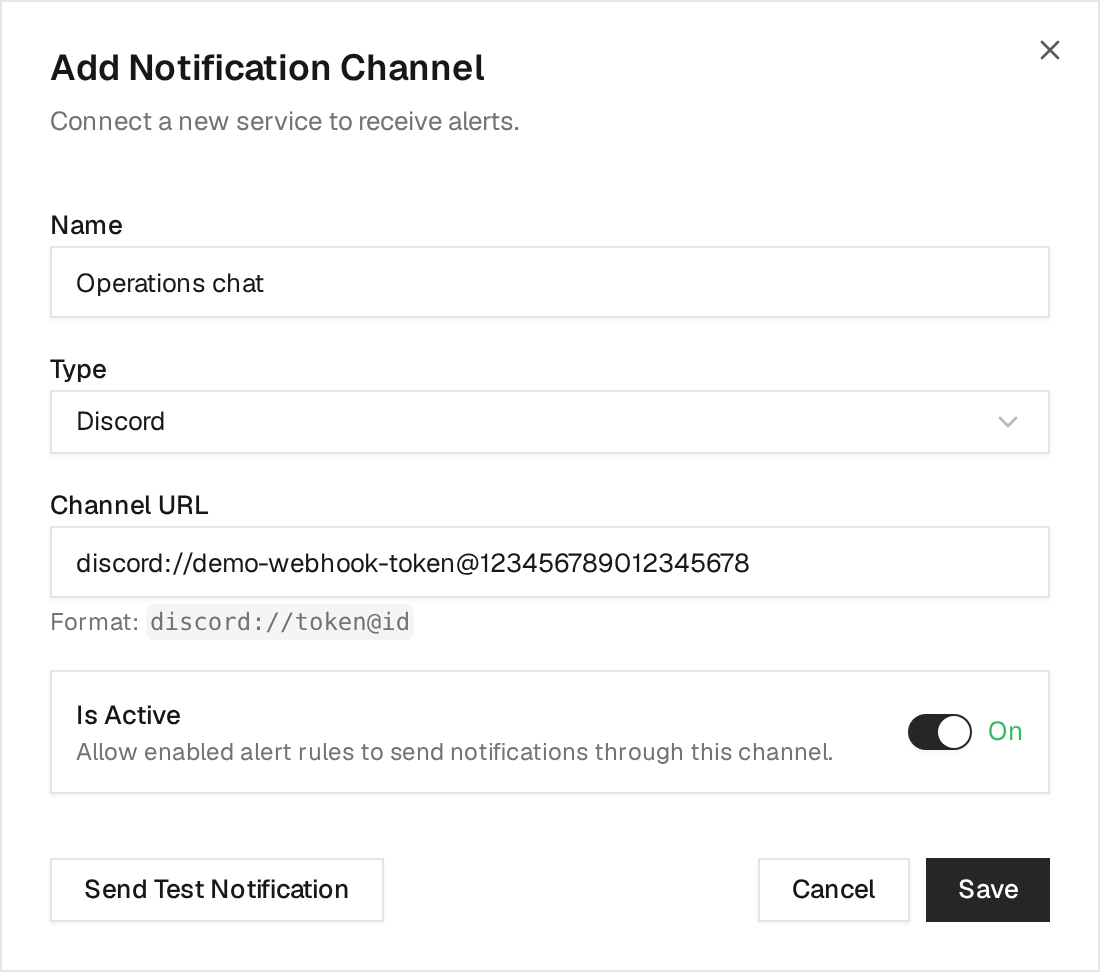
Select Send Test Notification and confirm the message appears in the chosen Discord channel. Then Save and assign it to a rule.
Microsoft Teams
- Create a Power Automate workflow with the When a Teams webhook request is received trigger and an action that posts to the desired Teams channel.
- Copy the generated workflow webhook URL.
- Percent-encode the entire URL, including its query string, and use it as
the
hostparameter below. - Select Teams in Citadel.
teams://?host=<percent-encoded-workflow-url>For example, https:// becomes https%3A%2F%2F, ? becomes %3F, and &
becomes %26. Do not paste the unencoded workflow URL after host=: its query
parameters would be interpreted as notification options.
The bundled sender uses workflow webhooks. Replace existing legacy
teams://group@tenant/... configurations with this format. See the
Teams reference
for a complete conversion example.
Test the channel, confirm the workflow posts the message, then save and assign it.
Slack
In Slack:
- Create a Slack app or open an existing app.
- Enable incoming webhooks.
- Add a webhook to the target channel.
- Copy the webhook URL.
Slack webhook URLs look like:
https://hooks.slack.com/services/<token-a>/<token-b>/<token-c>In Citadel:
- Type:
Slack - Channel URL:
slack://<token-a>/<token-b>/<token-c>Keep the three path segments in the same order, and omit /services/.
Test the channel and confirm the message arrives before saving and assigning it.
You can include a bot name:
slack://citadel@<token-a>/<token-b>/<token-c>Telegram
In Telegram:
- Create a bot with BotFather.
- Copy the bot token.
- Add the bot to the target chat, group, or channel.
- Use a numeric chat ID for a private chat or group, or an
@usernamefor a public channel. An invite link is not a chat ID.
For help finding IDs, follow the Telegram setup reference. Give the bot permission to post in the destination.
In Citadel:
- Type:
Telegram - Channel URL:
telegram://<bot-token>@telegram?chats=<chat-id>For a public channel username:
telegram://<bot-token>@telegram?chats=@channel-namentfy
- Choose your ntfy server and topic.
- Subscribe to that same server and topic in your ntfy app or web client.
- Select Ntfy in Citadel and configure its publishing URL.
For a public ntfy topic:
- Type:
Ntfy - Channel URL:
ntfy://ntfy.sh/<topic>For a protected ntfy server:
ntfy://:<access-token>@<ntfy-host>/<topic>Gotify
In Gotify:
- Create an application.
- Copy the application token for sending messages.
- Open a Gotify client connected to the same server so you can verify delivery.
In Citadel:
- Type:
Gotify - Channel URL:
gotify://<gotify-host>/<application-token>Generic Webhook
Use a generic webhook when the receiver accepts a normal HTTP request with JSON.
In Citadel:
- Type:
Generic - Channel URL:
generic://<host>/<path>?template=jsonExample:
generic://hooks.example.com/citadel/alerts?template=jsonThe JSON template sends title and message fields. Confirm the receiver accepts
this payload; an arbitrary webhook may require different fields or headers. See
Generic webhook options
for customization.
Supported Channel Types
These are the channel URL patterns supported by the Alert Rules page:
| Destination | URL format |
|---|---|
| Bark | bark://<device-key>@<host> |
| Discord | discord://<webhook-token>@<webhook-id> |
smtp://<username>:<password>@<host>:587/?from=<sender>&to=<recipient>&requirestarttls=yes | |
| Generic | generic://<host>/<path>?template=json |
| Gotify | gotify://<gotify-host>/<token> |
| Google Chat | googlechat://chat.googleapis.com/v1/spaces/<space>/messages?key=<key>&token=<token> |
| IFTTT | ifttt://<key>/?events=<event>&value1=<value> |
| Join | join://citadel:<api-key>@join/?devices=<device> |
| Lark | lark://<host>/<token>?secret=<secret> |
| Mattermost | mattermost://<username>@<mattermost-host>/<token>/<channel> |
| Matrix | matrix://<username>:<password>@<host>:<port>/?rooms=<room> |
| ntfy | ntfy://:<access-token>@<host>/<topic> |
| OpsGenie | opsgenie://<host>/<token>?responders=<responder> |
| Pushbullet | pushbullet://<api-token>/<device-or-channel> |
| Pushover | pushover://citadel:<api-token>@<user-key>/?devices=<device> |
| Rocket.Chat | rocketchat://<username>@<rocketchat-host>/<token>/<channel> |
| Signal | signal://<host>/<source-phone>/<recipient> |
| Slack | slack://<botname>@<token-a>/<token-b>/<token-c> |
| Teams | teams://?host=<percent-encoded-workflow-url> |
| Telegram | telegram://<bot-token>@telegram?chats=<chat-id> |
| WeCom | wecom://<key> |
| Zulip Chat | zulip://<bot-email>:<bot-key>@<zulip-domain>/?stream=<stream>&topic=<topic> |
Configure A Seeded System Rule
Community administrators can configure a rule installed by Citadel:
- Open
Settings -> Alert Rules. - Select a seeded system rule.
- Enable or disable the rule.
- Select one or more notification channels.
- Save the rule.
The rule continues creating in-app alert events when it has no channel. Selecting an active channel also enables external delivery.
Changing severity, cooldown, thresholds, required matches, quiet hours, or resource scope requires Team's Advanced Alerting capability.
Create A Custom Alert Rule
Creating a custom alert rule requires Team's Advanced Alerting capability.
Select:
Settings -> Alert Rules -> Add RuleSet:
Alert Type: condition that produces the alert. This is fixed after the rule is created.Name: stable name shown in alert events and notification titles.Status: enabled rules can trigger; disabled rules are ignored.Severity: default severity for alert events created by this rule.Cooldown: minimum time before the same rule can trigger again for the same resource.Applies to: optional resource scope. Leave empty to apply to all matching resources.Notification Channels: external destinations that should receive notifications.Quiet Hours: daily or weekly windows where matching alerts are suppressed.
Alert events are still recorded in Citadel even when no notification channel is selected. External notifications are only sent when the rule has at least one active channel.
Threshold Rules
PlatformCpuHigh, PlatformRamHigh, and PlatformDiskHigh are threshold rules.
They require:
Threshold: percentage that must be exceeded.Required Matches: number of consecutive checks required before the alert fires.
Use required matches to reduce noise. For example, CPU above 90 with Required Matches set to 3 only fires after three consecutive high CPU checks.
Quiet Hours
Quiet hours suppress alerts during planned maintenance or noisy time windows.
Each quiet hour has:
DailyorWeeklyschedule- start time
- end time
- timezone
- optional description
Quiet hours are evaluated using the selected timezone. Overlapping quiet-hour windows are not allowed.
Alert Types
Platform alerts:
PlatformCpuHighPlatformRamHighPlatformDiskHighPlatformUnreachablePlatformVersionMismatchUnmanagedContainerCreated
Deployment alerts:
DeploymentImageUpdateAvailableDeploymentAutoUpdatedDeploymentAutoDeployFailedDeploymentConfigurationResolutionFailed
Swarm Service alerts:
SwarmServiceOperationFailed
Stack alerts:
StackImageUpdateAvailableStackAutoUpdatedStackAutoDeployFailedStackServiceAutoUpdatedStackServiceAutoDeployFailedStackDriftDetectedStackDriftAutoReconciledStackGitUpdateAvailableStackGitAutoUpdatedStackGitAutoDeployFailedStackConfigurationResolutionFailed
Webhook alerts:
WebhookAuthenticationFailedWebhookDispatchFailedWebhookGitRepoSyncFailedWebhookStackGitDeployFailed
Automation alerts:
AutomationActionRunFailed
Recommended Rules
Creating the custom rules in this section requires Team's Advanced Alerting capability. Community administrators can instead attach notification channels to the corresponding seeded system rules.
For platform availability:
- Type:
PlatformUnreachable - Severity:
Critical - Cooldown:
300to900seconds - Scope: production platforms
- Channels: operations Discord, Teams, or incident channel
For sustained resource pressure:
- Type:
PlatformCpuHighorPlatformRamHigh - Severity:
Warning - Threshold:
85to95 - Required Matches:
3or higher - Cooldown:
900seconds or higher
For failed automation:
- Type:
AutomationActionRunFailed - Severity:
WarningorCritical - Scope: important actions
- Channels: the team that owns the action
For deployment or stack failures:
- Type:
DeploymentAutoDeployFailed,StackAutoDeployFailed, orStackGitAutoDeployFailed - Severity:
Critical - Scope: production resources
- Channels: deployment owners
For failed Swarm Service operations:
- Type:
SwarmServiceOperationFailed - Severity:
Critical - Scope: production Swarm Services
- Channels: service owners
Troubleshooting
If the test notification fails:
- Check that the channel URL matches the format for the selected channel type.
- Check that the Citadel server has outbound network access to the destination service.
- URL-encode special characters in tokens, webhook IDs, or path values when required.
- Confirm the webhook, bot token, or destination channel still exists.
- For email, check the SMTP credentials, sender authorization, port, and TLS settings. If the test succeeds but the inbox is empty, check spam filtering and the mail provider's delivery logs.
If Citadel records alert events but sends no notification:
- Make sure the rule has at least one notification channel selected.
- Make sure the selected channel is active.
- Check whether the rule is inside quiet hours.
- Check whether the cooldown has not elapsed yet.
- Review Citadel server logs for notification delivery errors.
If a rule does not trigger:
- Make sure the rule is enabled.
- Check that the selected resources in
Applies toinclude the resource you expect. - For CPU, RAM, and disk rules, confirm the threshold and required match count are reachable.
- For stack, deployment, webhook, and automation rules, confirm the underlying feature is enabled and producing events.
If alerts are too noisy:
- Increase cooldown.
- Increase required matches for CPU, RAM, and disk rules.
- Limit the rule to specific resources.
- Add quiet hours for maintenance windows.
License Availability
Community includes:
- notification channel creation, testing, update, enablement, and deletion
- every supported notification destination type
- in-app alert events
- Citadel's seeded system alert rules
- enabling or disabling seeded system rules
- assigning notification channels to seeded system rules
- external delivery when a seeded system rule triggers
Community has no license-enforced notification-channel count limit.
Team's Advanced Alerting capability adds:
- custom alert-rule creation
- custom conditions and rule behavior
- quiet hours
- cooldown changes
- threshold and required-match changes
- severity changes
- resource-specific scoping
A seeded system rule is installed by Citadel and owned by the Citadel system actor. In Community, you can change its enabled status and notification-channel assignments. Changing its other fields requires Advanced Alerting.
If a Team license expires after its grace period, custom rules pause. Notification channels remain configured, and seeded system rules continue sending in-app and external notifications.