 Citadel Docs
Volumes
Create Docker volumes, browse and download their contents, and protect application data.
Open a Platform, then Volumes to see Docker-managed storage. Named volumes persist independently of a container. Bind mounts instead use paths on the host; they are not available in the volume browser.
Create and attach a volume
- On an online Platform, select Add Volume.
- Enter a name such as
app-data. Keep the local driver unless your storage setup requires another installed Docker volume driver. - Select Save and check that the volume appears in the list.
- Add a mount to your Deployment, such as
app-data:/data, then save and deploy or redeploy it. Use the data path required by your application.
A Stack can declare and create its own named volumes in Compose. To attach an existing one, use an external volume with the matching name. Creating a volume does not attach it to containers automatically.
On Swarm, a volume created here belongs to the connected manager. Local volumes with the same name on different Nodes can contain different data. Check the Node before browsing, backing up, or restoring one.
Browse and download files
You need volume-content access and a reachable Docker host. For another Swarm Node, Cluster node coverage must provide a usable connection to that Node.
- Select the volume and choose Browse.
- Open directories and use the breadcrumbs to navigate.
- Use a file's download button to save its contents, or a directory's download
button to save a
.tararchive.
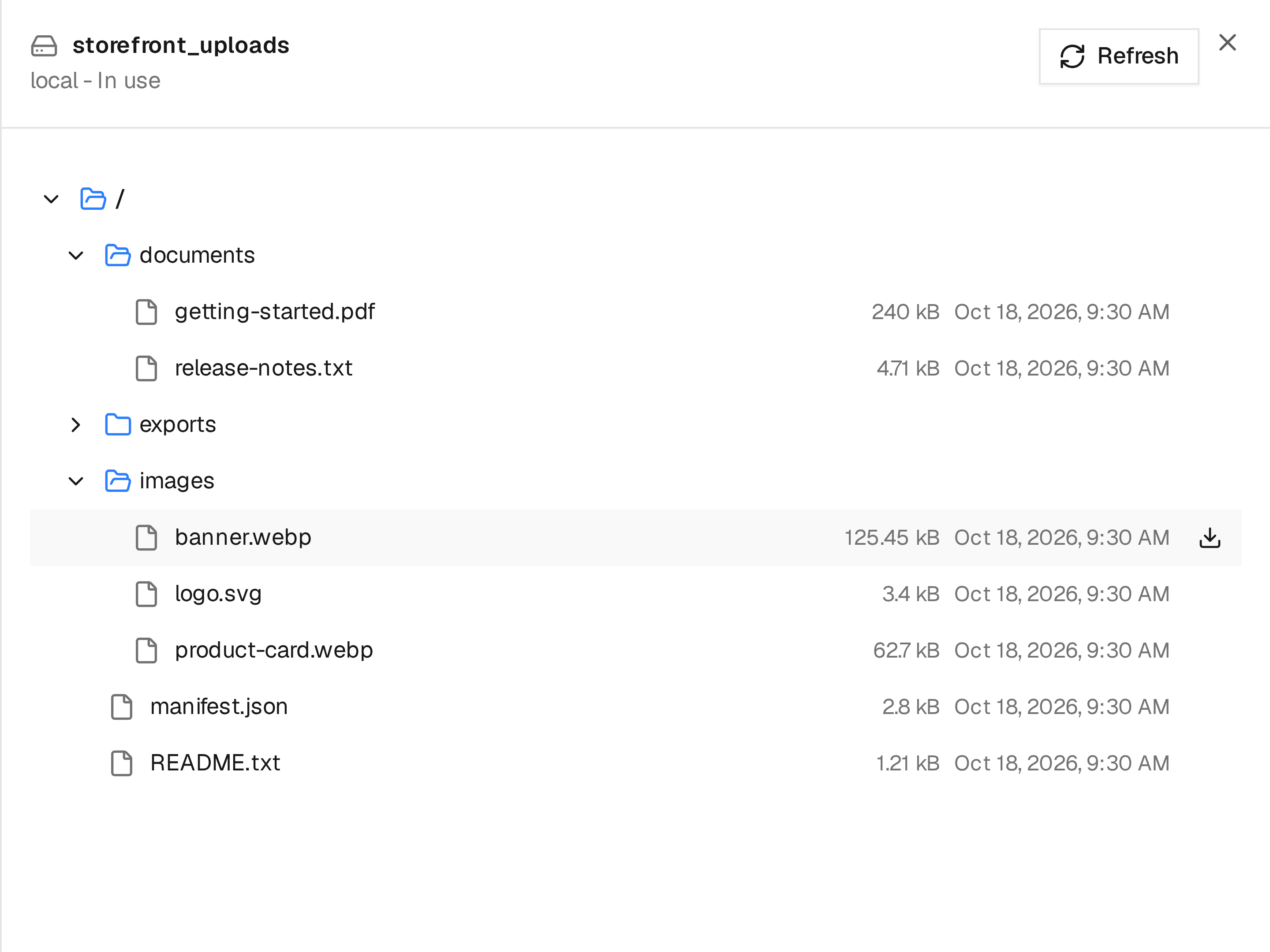
Expand a folder to inspect its contents. Hover over a file or folder to reveal its download action.
Browsing is read-only: it does not upload, edit, rename, or delete files. You can download a selected file or subdirectory, but not the volume root. Symbolic links cannot be followed or downloaded as files.
The browser reads current contents. Files may change while an application writes to the volume; a download is not an application-consistent backup. For recoverable snapshots and retention, configure a backup policy.
Protected storage
Citadel blocks browsing, individual downloads and directory archives for its own system storage, including for administrators. The owning Docker daemon checks the named volumes mounted by Citadel Core, database and Agent containers, including stopped containers, and rejects volumes overlapping system bind mounts. Custom volume names do not bypass this protection. This check runs again before every content request; UI capabilities alone never authorize it.
Read-only host telemetry mounts at /host, including mirrored Docker data-root
mounts used by rootless installations, do not make application volumes system
storage. Core and database data volumes remain protected.
The generic browser supports plain local volumes without driver options. Volumes with custom drivers or options are excluded because they can alias host paths or backing storage that Citadel cannot safely verify. Metadata inspection remains available. Dedicated backup and recovery operations are unchanged.
Core requires an explicit storage-safety result from the owning Agent before enabling browsing. If that result is unavailable, browsing stays disabled. The same rule applies to direct Agents, Edge Agents and Swarm Node Agents.
The installation Compose files label Citadel's data volumes with
com.citadel.system: "true". For existing or custom installations, apply this
label through your Docker provisioning process so protection also survives
removal of the last system container. Docker does not update existing volume
labels merely because Compose changes; do not delete a volume to relabel it.
Keep existing system containers until a planned data migration can preserve the
labels. Mount-based protection already applies while those containers exist.
Grant Browse and Download only to trusted operators: ordinary workload volumes can also contain application credentials. Container terminals, arbitrary mounts, Docker socket access, deployments and backup exports require their own trusted permissions. This browser restriction does not turn Docker administration into an isolated tenant security boundary.
Backup status
The Backup column shows coverage from policies you can access and updates when backup configuration or runs change. If the manager daemon is unavailable, the table retains its last inventory while coverage for persisted worker volumes can still update. Protected requires an enabled schedule and an available successful backup; a policy with no schedule needs attention. Unavailable means coverage could not be determined. See backup coverage for configuration and status details.
Hover or focus the shield to open the same backup card used on workload and container pages. It shows accessible policies, schedule warnings, and the last successful backup. When permitted, use Configure backup or open an existing policy. The form preserves the volume's platform and Swarm Node; Back to Volumes returns you to the list after configuration.
Inspect and remove a volume
Use Inspect to review metadata and attached containers. Before Delete, confirm that the data is no longer needed or that you have a usable backup. Deleting a volume removes its stored data.
Deletion is unavailable while the volume is in use or when viewing Node-specific inventory. A stopped container can still reference a volume; inspect its attachments before treating it as unused.
If browsing fails
| Symptom | What to check |
|---|---|
| Browse is disabled or access is denied | Your volume-content permissions, Platform status, and the selected Swarm Node's coverage |
| The browser cannot start | The target Docker host must be able to run Citadel's volume helper and obtain its image; inspect the returned error |
| A file has disappeared | Refresh the directory; the application may have moved or deleted it |
| A path cannot be downloaded | Select a regular file or subdirectory, rather than the volume root or a symbolic link |
For remote workload backups, use an S3-compatible repository as described in backup repositories.