 Citadel Docs
Backups
Back up and restore Citadel, Docker volumes, and supported host paths with policies and repositories.
Citadel backs up its control plane, Docker volumes (named or anonymous), and supported host files and directories. Snapshots are stored in encrypted restic-compatible repositories.
Make your first backup
A backup needs a repository (where it is stored) and a policy (what it saves). This workflow backs up application data and restores a separate copy for testing. For Citadel's database and security keys, use a separate Citadel system policy and follow control-plane recovery.
For this example, you need an online Platform, a Docker volume, and permission to manage backup repositories and policies. Confirm the application's data lives in the selected volume. To protect host paths, use a workload policy or Host file or directory. Container writable layers are excluded from backups.
1. Prepare the repository
Add Repository requires global Write permission for Backup Repositories through a Role assigned directly or through a Team. A Write override on an existing repository allows editing that repository, not creating another one.
- Open Backups and create a backup repository.
- Choose storage supported by the connection in the table below. For recovery from host failure, keep the repository away from that host.
- Select a Password Secret for restic's repository encryption. For S3, also supply the endpoint, bucket, and credential secrets. See repository settings.
- Save, select Initialize for a new repository, then Validate. For an existing repository, use its original password and validate it.
| Backup execution | Supported repository |
|---|---|
| Citadel control plane or Local-connector workload | Core filesystem or S3-compatible |
| Standalone Docker workload on Local, Direct Agent, or Edge Agent | Platform filesystem on the same host, or S3-compatible |
| Docker Swarm workload | S3-compatible |
The S3 endpoint must be reachable from the target's backup helper, not just your browser or Core. Keep the repository password separately accessible for recovery; S3 credentials alone cannot decrypt the snapshots.
Edit a repository
Open a repository from Backups to edit its name. Editing requires Write permission on that repository. Names must be unique regardless of capitalization. Save changes becomes available when a value changes.
Once a repository is Ready, its destination and encryption password are locked and shown as readable storage details. Changing the name preserves its policy links and existing backups. Create another repository to use a different destination. Encryption-password rotation is not available in this form.
To replace S3 credentials, create replacement secrets in Bindings, then expand Update S3 credentials in the repository editor. Select the access key, secret key, and optional session token, then choose Validate and update. This requires repository Write and Execute permissions and Read access to Bindings. Validation runs from Core using the existing destination and encryption password; Core must be able to reach the S3 endpoint. Citadel saves the new selections only when validation succeeds. Failed validation leaves the current selections and repository readiness unchanged. Updates are blocked while the repository is in use; retry if a concurrent edit or expired validation prevents saving.
Create replacement secret entries instead of overwriting shared secret values. Other repositories may still use those entries. Revoke old provider credentials after the update and a successful backup from the intended execution location.
Expand Maintenance to validate, check, or prune a ready repository. Save pending edits before running maintenance. Initialize is available for repositories that are not yet ready.
2. Create and run the policy
Add Policy requires global Write permission for Backup Policies, granted through a role assigned directly or through a team. An override on an existing policy or repository only grants access to that resource; it does not allow creating new policies. You also need access to the selected repository and backup source.
If Add Policy is disabled while an existing policy is editable, check the user's Role permissions under Access → Roles and their Role and Team assignments. Repository permissions do not grant Backup Policy permissions. See Roles and resource overrides for the difference in scope, and Backup API capabilities for interpreting list responses.
- Create a policy and choose Docker volume under Source → Back up.
- Select the Platform and volume. For Swarm, select its Node and check Swarm backup requirements first.
- On Standalone, keep Consistency → Live. Prepare an application-specific dump or maintenance window if the application needs coordinated writes; see backup consistency before copying live database files.
- Select the repository under Destination and configure retention. Leave scheduled and webhook execution disabled for this first manual run.
- Save, select Run, and wait for completion. Open Runs and inspect the snapshot status and logs, including warnings.
For a whole Stack or Deployment, select that source instead and review the resolved volumes and bind mounts before saving. Each storage target has its own snapshot and result; the run is not an atomic snapshot of the entire application.
Continue with a restore test below before relying on the policy. Protected requires an enabled schedule, a ready repository, and a successful available backup. It does not replace a restore test.
Backup consistency
Volume backups use Live consistency. Stop attached containers is unavailable for new policies and execution; Citadel does not stop or restart applications for a backup. An existing policy with that setting can be disabled without changing its source. Select Live before enabling or running it again. Arrange application consistency separately, for example with an application-native dump.
For Standalone workloads that require downtime, stop the relevant application through its normal controls before starting the backup and restart it afterward. For databases, follow the application's backup procedure and include its dump in the protected volume. Swarm workload backups require running, stable Tasks and support Live consistency only; see Swarm requirements.
Restores
Docker volume snapshots restore into Docker named volumes. Bind-mount snapshots restore into host paths; see bind-mount restores. Citadel system snapshots use the offline control-plane recovery procedure.
Runs marked Succeeded with warnings can also be restored when the selected snapshot succeeded and is still available. Review the warnings for excluded sources or retention problems; failed items and expired or missing snapshots cannot be restored.
Copy a workload with data
On a Deployment, Stack or managed Swarm Service page, open Duplicate. Citadel includes copy availability in the resource details and refreshes it through realtime updates when configuration, backup availability or access changes. Opening the menu does not request a copy preview. Configuration + data is disabled when copying is unavailable, with the reason shown under the option. A backup policy is not required to copy current data. Configuration only remains available.
Choose Configuration + data to open the three-step wizard:
- Configure: name the new resource, select a compatible destination Platform (and node for Swarm), and choose Copy current data or Use an existing backup.
- Select data: review the named volumes and confirm source consistency for current data, or choose an available successful backup for each volume.
- Review: check the destination volumes and shared references, then confirm.
The wizard checks again before creating a copy. If storage changes after opening the menu and no supported named volumes remain, it offers Configuration only instead. A workload without volume mappings has no volume snapshots to select; data in memory or the container writable layer is not copied.
Copy current data takes a temporary, encrypted Restic snapshot of each source volume and restores it into a new volume. It requires no backup policy, schedule, or backup repository. The temporary repository lives in an isolated helper container and is removed with the helper; it does not appear in backup history or provide ongoing backup protection. Allow free disk space on the source host for both the temporary snapshot and the new volume. Each volume job has a four-hour time limit. Jobs run one at a time.
Current-data copying is a file-level operation, not an atomic application snapshot. Stop or quiesce databases and related writers before confirming, and keep them quiesced until the operation finishes. Citadel mounts the source read-only and does not stop or restart workloads automatically. Use application-consistent existing backups when interrupting the live workload is unsuitable.
Choose the Destination platform in the first step. Only compatible Platforms with write access appear: Standalone to Standalone, or Swarm to Swarm. Copying to another Platform or Swarm node uses existing backups from an S3-compatible repository reachable from the destination. Host-local filesystem repositories are not offered for these transfers. Copy current data remains on the source Platform and exact node.
For Swarm Services, select a Ready, Active destination node. Citadel pins the copied Service and its restored volumes to that node. Referenced Swarm networks, secrets and configs must already exist with matching names on the destination; missing, stale or ambiguous matches block the copy. Their contents are not copied. Other placement constraints remain unchanged and should be reviewed before Apply. Standalone network names and image references are retained; ensure they are available on the destination. A local image ID is not transferred with the data.
Citadel restores each distinct volume into a fresh volume, then creates an undeployed resource after every restore succeeds. A volume shared by multiple Stack services is restored once. The source workload and storage are unchanged. Automatic updates, webhooks, deployment hooks and build-triggered redeployment are disabled on the copy. Review ports, credentials, networks and external services before choosing Apply; these references may still be shared.
Supported storage is plain local Docker named volumes without custom driver
options. Standalone Deployments and Web Editor Stacks are supported. Swarm
Services must have one replica and be pinned to an exact node.id; their copies
can restore to a selected Ready, Active node on a compatible Swarm. Git Stacks, Swarm Stacks, bind mounts, anonymous mount
mappings and unresolved Compose indirection are blocked. This restriction is
specific to coordinated copying; ordinary backup and restore support is
unchanged. Snapshots are selected by their source Platform, node, volume and
run item. The selector searches the most recent 1,000 authorized backup runs.
You need read access to the source, permission to create its resource type, write access to both source and destination Platforms, and permission for the selected data source: Copy current data requires the Platform Download capability; Use an existing backup requires Restore execution permission on each selected backup policy. Copying scoped bindings also requires binding read and write permissions. Source configuration, bindings and permissions are checked again when starting and before creating the copy. Destination identity, placement and referenced Swarm resources are also revalidated; changes block completion. A completed review expires after 30 minutes if it has not been started.
Once started, the operation continues if you close the dialog or disconnect. Progress updates arrive through the realtime connection, including per-volume status. Queued and active stages show a spinner. Reconnecting reloads the persisted operation state without restarting the copy. Keep its page URL to reopen progress after a refresh. Opening the finished destination clears the progress link from the source page, so its next Duplicate with data action starts a new review. Retrying Start uses the same operation and restore records. The copy appears only after all restores succeed, with an Open link; it is never applied automatically. Apply checks that the restored volumes still exist, belong to this operation, and remain on the reviewed destination Platform and exact Swarm node. A copied Stack locks its Platform selector because its copied volumes belong to that Platform; create another copy to choose a different destination. Ordinary configuration-only drafts remain movable. Changing Platform or node placement does not move storage and blocks Apply.
Current-data volume jobs run one at a time. Other copies can still finalize or clean up while a current-data copy is running. If recording a completed job fails because the database is temporarily unavailable, Citadel retries the result write without copying the data again. A claim whose database acknowledgement was lost is marked interrupted before another job starts.
If Core exits before an active restore or current-data job records its result, startup recovery marks that job interrupted and fails the copy without creating a destination resource. Citadel does not replay the interrupted restore automatically. Inspect and clean up retained volumes, then start a new reviewed copy. Unclaimed queued restores can still run after startup.
If a restore fails or the copy is cancelled, no destination resource is created. Destination volumes are retained, including partial data from failed restores. The progress card lists every destination name. Clean up volumes is an explicit, name-confirmed action that removes only unused volumes whose ownership matches this operation; it never removes the source volumes or a replacement volume created by someone else. In-use volumes are retained. For current-data copies, failures retain partial destination volumes. Helper cleanup is attempted on completion, cancellation and errors. If the host is unreachable or Core exits, a helper may remain until its bounded lifetime ends or Clean up volumes can reach it. Cleanup verifies helper and volume ownership. When using existing backups, selected repositories cannot run backups or pruning while the copy is active, so retention cannot remove its selected snapshots mid-copy.
Backups taken at different times are not a coordinated application snapshot. Use application-consistent backups for databases and related services; see Backup consistency.
Restore a separate copy
Named-volume restores preserve numeric ownership and permissions of both the volume root directory and its contents.
- Open the policy's Runs tab and select Restore backup on an available backup run. For a run containing several volumes, select the successful Snapshot Volume you want to recover.
- Choose Target Platform. Check the repository rules below; on Swarm, also select Target Node.
- Replace the pre-filled Target Volume with a new name, such as
application_data_recovered. Leave Overwrite existing target volume disabled. - Select Restore and wait for completion. Check Restore runs and open the run's logs if it reports a failure or warning.
- On the target Platform, open Volumes and use Browse to check the restored files. Then attach the restored volume to an isolated test instance of the application, using the expected image version and mount path. Check that it starts and can read representative data before declaring the backup usable.
Keep the test instance separate from production ports, networks, and external integrations. File presence alone does not verify database or application recovery. Record the snapshot tested, application version, and result.
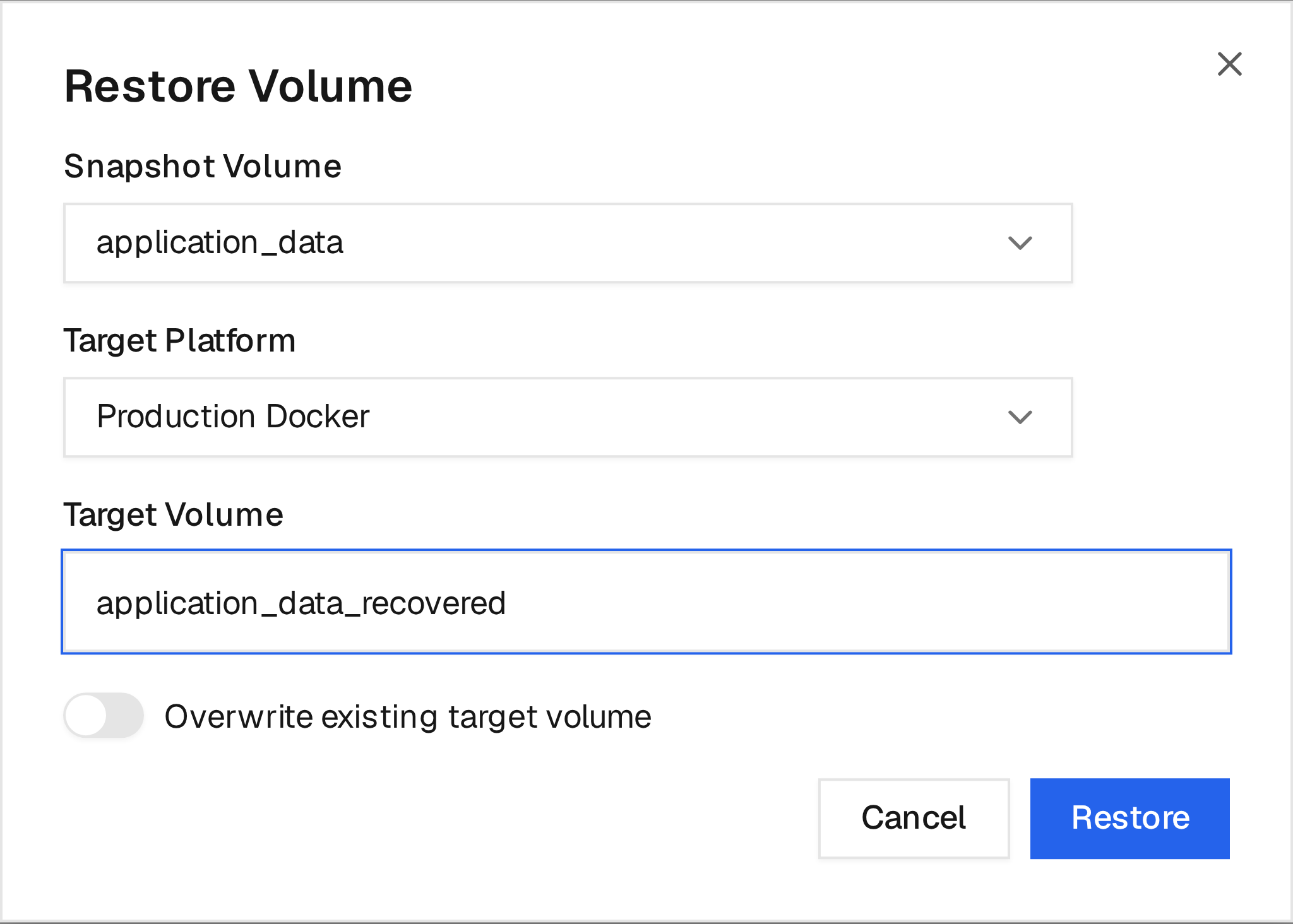
This demo backup contains two volume snapshots. Snapshot Volume selects the
one to restore; Target Platform and Target Volume specify where it goes.
The example restores application_data as application_data_recovered. Review
all three before selecting Restore.
Overwrite restore is destructive. When Overwrite existing target volume is enabled, Restic restores into that volume and removes files absent from the snapshot. It does not delete and recreate the Docker volume. The UI requires you to type the exact target volume name before the restore can start. Citadel rejects overwrite when the target volume is currently in use.
For a new destination, Citadel creates a plain local volume with restore ownership labels and verifies them again after attaching the restore helper. A conflicting volume is never overwritten or removed. Failed or cancelled restores retain their destination volume for inspection, including any partially restored files. Choose a different new name for a retry, or inspect and explicitly remove the unused destination before retrying.
If restore-helper creation is interrupted, Citadel attempts cleanup using the helper's unique ownership label and container ID. It leaves unrelated containers untouched and reports when cleanup cannot be verified, so you can inspect the destination before retrying.
Restore history is shown in the same Runs tab under Restore runs. Use the log action on a restore run to inspect the restore output after the progress sheet is closed.
Repository and platform rules for restore:
- A Core filesystem repository can restore to the local platform only.
- A Platform filesystem repository restores on the same standalone Docker platform that owns that repository path, including Direct and Edge Agents.
- An S3-compatible repository can restore to local, regular agent, or edge agent platforms because the restore runs from the target platform.
- A Swarm volume snapshot can be restored only to a new named volume on an explicit current Node. Citadel does not overwrite a Swarm volume or automatically attach the restored volume to a Stack or Service.
- Citadel control-plane snapshots are restored offline while Core is stopped. They are not restored into a Docker volume through the web UI.
For the PostgreSQL dump, security assets, clean-environment restore sequence, and recovery drill requirements, see Control-plane recovery.
Backup Repositories
A backup repository is the destination where snapshots are stored.
Filesystem repositories store snapshots in a folder; S3-compatible repositories use a bucket, such as MinIO or AWS S3. Choose a supported execution location using the table in Prepare the repository.
Standalone Local, Direct Agent, and Edge Agent platforms support filesystem repositories. Backup, restore, initialization, validation, and retention execute on the configured platform; Core does not mount or copy the remote repository. Docker Swarm backups and cross-platform restores require S3-compatible storage.
S3-Compatible Repository Settings
S3-compatible repositories use restic over an S3-compatible API. The bucket stores restic's encrypted repository layout, not plain backup files.
When creating an S3-compatible repository, configure:
- Endpoint: the S3 API URL, such as
https://s3.example.comorhttp://192.168.1.50:9000 - Bucket: the bucket name, such as
citadel-backups - Prefix: optional path inside the bucket for this repository
- Region: required by some providers;
us-east-1is usually fine for local MinIO or RustFS-style stores - Bucket Lookup: use
Pathfor local S3-compatible stores unless DNS-style bucket hosts are configured - Allow Insecure HTTP: enable only for local or private HTTP endpoints
- Password secret: the restic repository password used to encrypt and unlock backups
- Access Key Secret: the S3 access key
- Secret Key Secret: the S3 secret key
- Session Token Secret: optional, only for temporary S3 credentials
The restic password is separate from the S3 credentials. Losing the password secret means existing snapshots in that repository cannot be restored.
For Docker volume, bind mount, stack, deployment, and Swarm Service backups, the S3 endpoint must be reachable from every helper container that executes the policy. For Citadel backups, the S3 endpoint must be reachable from Citadel Core.
Examples:
- If Citadel Core and the local Docker platform run on Docker Desktop,
http://host.docker.internal:9000can be useful for a local RustFS or MinIO test service exposed on the host. - If a regular agent or edge agent runs on another machine, do not use
host.docker.internalunless that name is valid on that machine. Use a LAN-reachable IP address or DNS name, such ashttp://192.168.1.50:9000orhttps://s3.internal.example.com.
Filesystem Repository Paths
Filesystem repository paths are resolved where the repository is executed:
- Core filesystem paths are on the Citadel Core host or inside the Core container volume.
- Platform filesystem paths are on the selected Local, Direct Agent, or Edge Agent Docker host. An absolute path selects a host directory; a name such as
citadel-backupsselects a Docker named volume.
On Agents, create the directory or named volume before initializing the repository. Host paths must be normalized absolute paths, outside system/runtime directories, without symlink components. Missing paths are rejected rather than created on the wrong host. Repository storage must not overlap the backup source or restore target. A filesystem repository belongs to one platform; a different platform cannot access it merely by using the same path.
For example, a Platform filesystem repository path of /srv/backup-01 on an Agent
platform stores the restic repository on that Docker host. The repository contains
folders such as config, data, index, keys, locks, and snapshots.
When Citadel runs against Docker Desktop on Windows, Linux-style paths such as /srv/backup-01 are usually inside Docker Desktop's Linux VM filesystem. They will not appear as C:\srv\backup-01 or D:\srv\backup-01 in Windows Explorer unless that path is explicitly backed by a shared Windows bind mount.
After creating a repository:
- Select Initialize if the repository is new.
- Select Validate to confirm Citadel can read the repository.
- Use Check for periodic repository health checks.
- Use Prune to reclaim unreferenced repository data. It does not expire snapshots or impose a keep count. Policy retention removes snapshots using that policy’s settings and scope; repository Prune reclaims their now-unused data.
Backup Policies
A backup policy defines what to back up, where to store it, and when it should run.
The indicator beside the policy name shows whether the policy is Enabled or Disabled. The Last Run column shows the latest run's timestamp and result: green for success, red for failure, and orange for success with warnings. Hover over the run icon to read its status. Policies that have never run show No runs.
The policy's Run As identity supplies permissions for scheduled and webhook-triggered runs. Choose an enabled User or, preferably for unattended operation, a least-privileged Service Account. Manual runs use the authenticated caller; runs started by a Script use that Action run's identity.
A Service Account run-as identity requires Team's Custom access control
capability. Scheduled and webhook-triggered policies additionally require
Automated Operations. If the Custom access control capability becomes
unavailable, Citadel preserves the binding as Paused by license and does not
start new runs under it.
See Service Accounts for creating an account, assigning access, and understanding Use permission. Backup Policies never store the Service Account's persistent API token.
Supported sources:
- Citadel system (administrators only): creates a PostgreSQL logical dump and packages the file-backed keys required to recover the Citadel control plane.
- Host file or directory: backs up one explicitly selected existing host file or directory. Requires Platform write access. On Swarm, select the exact owning Node; policies do not follow a task to another Node.
- Docker volume: backs up one selected Docker-managed volume by its actual name, including an anonymous volume with a generated name.
- Stack storage: on standalone Docker, discovers actual Docker volume names and supported bind mounts from its owned, synchronized containers. This includes named, external, and anonymous volumes; shared volumes are backed up once. Preview and execution use the same discovery, and missing services, incomplete inventory, or unavailable inspection blocks execution. Git stacks use the recorded applied commit to check the service list. On Swarm, resolves supported volumes and bind paths on the current Tasks’ Nodes.
- Deployment storage: backs up declared named volumes and supported bind mounts discovered from the synchronized container on standalone Docker. Runtime-only anonymous volumes still need a direct Docker volume policy.
- Swarm service storage: backs up supported local Docker volumes and bind mounts on the Nodes running the managed Service’s current Tasks.
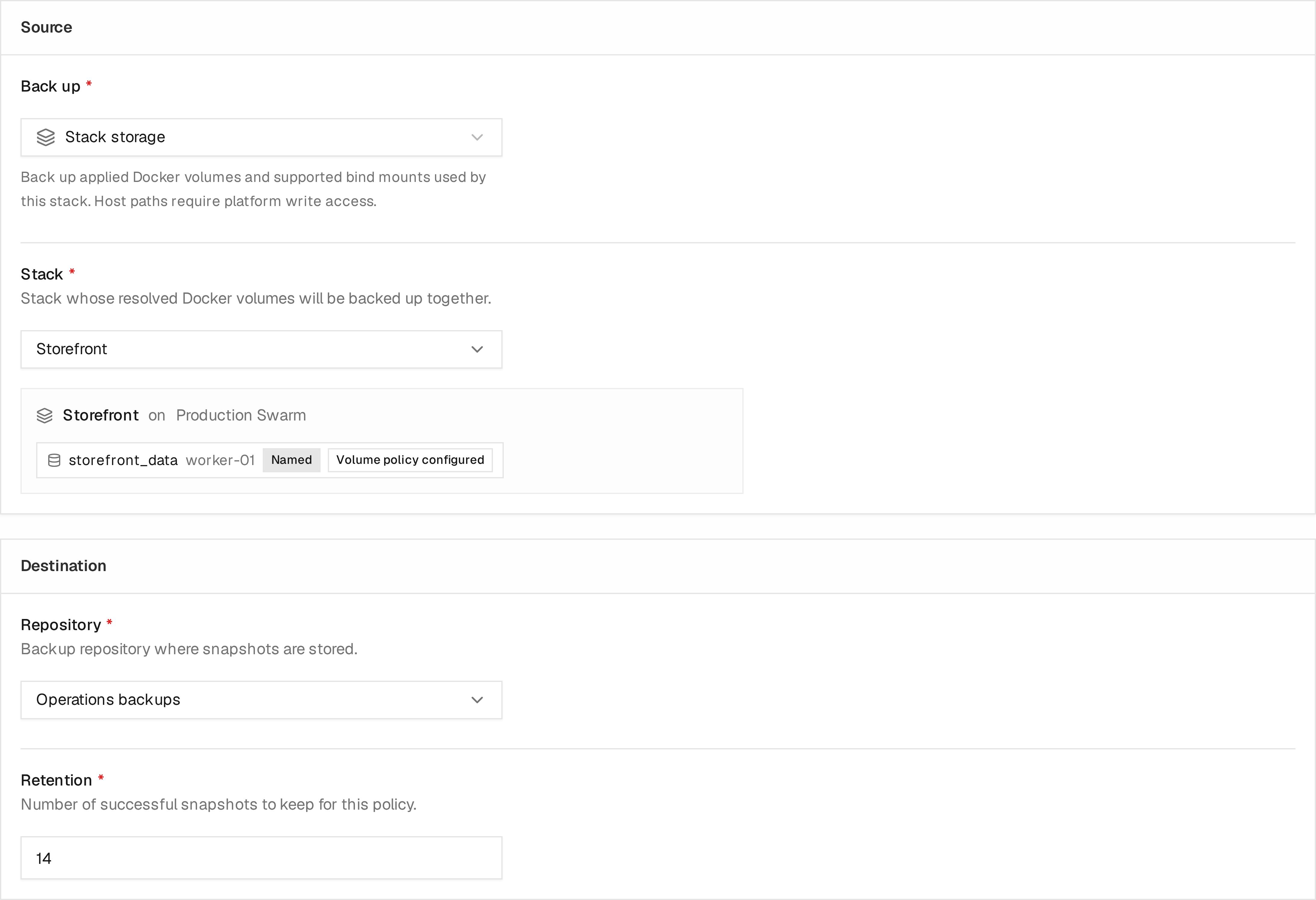
Example policy using demo resources. Review the resolved volume and Node under Source, then choose the repository and retention under Destination. The example keeps 14 successful snapshots. Volume policy configured in the source preview means a direct volume policy exists; it does not confirm a successful backup. Inspect completed runs to verify snapshots.
Coverage on resource pages
The Container overview shows a shield beside each Docker-managed volume and bind mount. Hover over the shield or focus it with the keyboard to see backup status and the last successful backup when available. An unprotected storage target has no matching policy visible to you; unsupported paths and unavailable coverage are shown separately.
Deployment, stack, and managed Swarm Service pages show a backup shield at the far right of the main tab bar, available from every tab. Hover, focus, or click the shield to open a card with status for each storage target, a count of protected targets, and the most recent successful backup when available. Press Escape to close the card; keyboard users can press Tab or Down Arrow from the shield to enter it.
The shield is green when every eligible storage target has an enabled scheduled policy, a ready repository, and a successful available backup. It is amber for manual-only policies, disabled policies, no successful backup, partial coverage, or other warnings. A successful manual backup retains its last-success date but does not turn the shield green without a schedule. Failed, timed-out, interrupted, and rejected runs show red. Unavailable coverage and no eligible storage show gray. The card explains the status; color alone is not the only indication. When multiple policies cover the same storage, warnings and failures remain visible even if another policy has succeeded.
Backup indicators use synchronized storage inventory. Apply the workload and synchronize its platform if coverage reports incomplete or unavailable inventory. A configured schedule is active only when Automated Operations is available and backup workers are enabled; otherwise the indicator reports that automatic backups are paused.
Deployment, stack, Swarm Service, and container tables display a Backup column and a Backup Filter dropdown at the right of the resource header. Select multiple statuses to show resources matching any selected status. These combine with the platform, tag, search, and update filters. Remove individual status chips or clear the selection to show all backup statuses. The column uses the same shield and card as the resource page. Resources without eligible storage show a dash. Edit schedule in the card opens the policy's Schedule section when you have write access.
Configure backup opens the central policy form with the workload or individual volume already selected, including its Swarm Node when applicable. Existing policy links let you review coverage without creating a duplicate policy for a shared volume. Creating a policy opens its edit page, where you can run the backup immediately. Saving later changes keeps you on that page. Use the Back to Deployment, Back to Stack, Back to Swarm Service, Back to Container, or Back to Volumes link to return when ready. Coverage updates through the resource's live connection when policies, runs, repositories, or inventory change; opening the resource does not poll backup source previews.
A Swarm Stack without applied service inventory shows an explanation to apply the Stack and synchronize inventory first. Coverage uses the applied namespace or synchronized Citadel-owned service inventory to identify its storage.
Schedules, retention, repositories, and run history remain in Backups. A configured policy is not proof of a successful backup: disabled, failed, or never-run policies need attention. A newly added volume is not marked protected just because an earlier workload backup succeeded.
A deployment preview may also discover runtime-only volumes. These are marked Not included in deployment backups in the resource summary and are excluded from the deployment policy's source preview. They can still have coverage from a separate Docker volume policy. Use the individual volume's Configure backup link even when the deployment already has a policy. Anonymous volumes are identified by Docker's generated name; if a container recreation replaces the volume, a direct policy targeting the old name does not follow the replacement.
The protected count covers listed Docker volumes and discovered bind mounts. Supported bind mounts are included in workload policies; an individual Host file or directory policy can also protect one path. A policy for the same path on another Swarm Node does not provide coverage. Unsupported system paths show Not covered. Tmpfs, nested mounts, and container writable layers remain excluded; a green shield does not mean all application state is backed up.
Workload backups include supported bind mounts discovered from synchronized, owned containers, using the actual absolute host path and exact Swarm Node. Citadel does not guess where a relative Compose path resolves. Creating or updating a workload policy with bind paths requires Platform write access, which is checked again for the run-as identity before execution. Discovery failures, stale owned containers or current Tasks, and missing container inventory block execution; previews report incomplete discovery while retaining known paths. Unsupported system paths are excluded with warnings. Tmpfs and the container writable layer remain excluded.
Docker Desktop can report internal /run/desktop/... paths when inspecting
containers with mixed volume and bind mounts. Those paths remain excluded by the
system-path restrictions. Check the source preview; an explicit Host file or
directory policy can use the original supported host path instead.
Backup counts
The main Backups page lists the backup policies you have permission to view. An individual platform's Backups summary only counts policies whose source belongs to that platform:
- Docker volume and bind-mount policies created for the platform
- Stack policies whose stack runs on the platform
- Deployment policies whose deployment runs on the platform
- Swarm Service policies whose managed Service runs on the platform
Citadel control-plane backups are instance-wide and do not belong to a Docker platform. They appear on the main Backups page but are not included in any platform's backup count. For example, one Citadel backup and one volume backup produce a total of two policies on the main page and one policy on the volume's platform.
Citadel system backups
A Citadel system backup protects Citadel configuration and recovery keys; use
control-plane recovery for the full
backup and restore procedure. It does not archive all of /app/data. Git caches, stack
workspaces, scripts working directories, logs, and backup staging files are
recreated from database state or external systems and are deliberately
excluded.
If the JWT or local secret-encryption key is supplied through external configuration, its plaintext value is not copied into the snapshot. The manifest records that dependency. Preserve the external value separately or the recovered installation will not be able to authenticate existing sessions or decrypt stored credentials.
The official Citadel Core image includes pg_dump. Native installations and
custom images must provide a PostgreSQL client that supports the configured
server version. Set CITADEL_PG_DUMP_PATH when pg_dump is not available
on PATH.
Docker Platform Backups
Citadel reads Docker-managed volumes through the target's Docker daemon using a backup helper. S3 backups upload from that target directly to the bucket, so the S3 address and credentials must work from the helper's network. Remote volume contents do not pass through Core. For supported repository locations, see Prepare the repository.
Docker Swarm
Citadel supports node-scoped backup of Docker Swarm local named volumes. A Swarm volume is identified by its Platform, owning Node, and volume name. Equal volume names on two Nodes are treated as different backup sources.
Supported Swarm sources are:
- one named volume selected on an explicit Node
- a managed Swarm Stack, resolved from its current Services and Tasks
- a managed Swarm Service, resolved from its current Tasks
Swarm backup requires:
- a usable connection to every required Node: the existing manager connection covers that manager, and node agents cover other Nodes
- current, stable Task placement with all desired Tasks running
- Docker-managed named volumes using the
localdriver without driver options - an S3-compatible backup repository reachable from every required Node
- Live consistency
Citadel rejects stale or incomplete placement, missing Node coverage, scaled-to-zero workloads, cluster volumes, volume-plugin storage, and local volumes configured with driver options. These workload policies also include supported bind mounts discovered from current Tasks on their exact Nodes. A direct Host file or directory policy remains fixed to its selected path and Node. tmpfs, container writable layers, Docker Secrets, and Docker Configs are not included.
For a Stack or Service, each volume or bind mount has its own snapshot. They are crash-consistent at best and do not represent one atomic point in time across all Nodes. A failed child marks the workload run as failed, while snapshots already completed remain available for individual restore.
Keep a Citadel control-plane backup alongside workload-volume policies. The control-plane backup protects Citadel configuration, bindings, encrypted secrets, and recovery assets; it does not replace an application-data backup.
Bind-mount backups and restores
Use Backups → Add policy → Source → Back up → Host file or directory, or Configure backup beside a discovered bind mount in a workload's backup card or Container overview.
- Select the Platform and an existing absolute Linux host path, such as
/srv/app/dataor/srv/app/config.json. Use the host path, not its destination inside the application container. Resolve relative Compose paths first. - On Swarm, select the exact Node containing the data. The same path on two Nodes is two sources. A direct host-path policy stays on that Node; a workload policy resolves current Task placement for each run.
- Select a repository and run the policy. Standalone Local, Direct Agent, and Edge Agent platforms support filesystem repositories on the same host or S3. Swarm Node Agents require S3-compatible repositories.
Creating a bind policy and executing it both require Write permission on the Platform, in addition to normal policy/repository permissions. Host paths may contain data outside the workload, so Platform read access is insufficient.
Only existing regular files and directories are supported. Citadel rejects /,
relative paths, traversal, trailing slashes, mount-expression delimiters, and
system/runtime paths under /proc, /sys, /dev, /run, /var/run, and
/var/lib/docker. Use actual resolved host paths; symlink components in a source or destination
path are rejected. Devices, sockets, and named pipes cannot be backup roots. Nested mounts
are excluded. Filesystem repository paths must not overlap the bind path.
Backups run live without stopping applications. Quiesce writers or create an application-native dump when consistency requires it. Snapshots contain files, not running process state.
To restore, open a successful run and use its restore action. For a mixed workload backup, select the bind mount in Snapshot source; selecting a volume instead restores to a Docker volume. Select the target Platform, exact Swarm Node when applicable, and Target host path:
- Prepare an existing empty directory for a directory snapshot. Missing host paths are rejected, so a typo cannot silently create an unintended target.
- For a file snapshot, prepare an existing regular file and enable overwrite.
- Nonempty directories also require Allow overwriting existing host files and typing the target path to confirm. Stop writers before restoring.
- Snapshot and target must have the same type. Bind snapshots restore to host paths; volume snapshots restore to Docker volumes.
Restores stage the snapshot in the helper first, requiring additional disk space on the target host. Copying preserves numeric ownership, ordinary permissions, and directory symlinks. Directory restores merge files and leave unrelated destination files in place. Extended ACLs and extended attributes are outside the copy-based restore guarantee. Restore is not atomic: a copy failure can leave a partially restored target. Citadel never removes an existing host path during failure cleanup and does not reattach or restart workloads.
Running A Backup
Open Backups, select a policy, and use Run. Citadel shows a progress sheet with the run status and restic summary.
Successful runs show:
- Snapshot count or snapshot ID
- Files processed
- Bytes scanned and added
- Any warnings
If a policy contains multiple volumes or bind mounts, Citadel creates one backup item per storage target, each with its own status and snapshot metadata.
The policy Runs tab contains backup and restore execution history and logs. The Activities tab records policy creation, configuration changes, renames, archival actions, and backup runs being queued, started, and completed. Use Backup run failed in the event filter to find failed completions.
Scheduled Backups
Scheduled backups require Team's Automated Operations capability.
Configure the policy schedule and timezone when Citadel should queue backups without an operator. If the capability becomes unavailable, Citadel preserves the schedule but does not queue new scheduled runs. Manual backup and restore remain available.
Webhook Triggers
Webhook-triggered backups require Team's Automated Operations capability.
Enable Webhook on a backup policy when an external system should queue the backup.
For the shared listener model, authentication options, URL shape, and troubleshooting, see Webhooks.
Common uses:
- run a backup before a deployment pipeline updates a stack
- run a backup before scheduled maintenance
- let an external scheduler trigger a policy without using Citadel's cron schedule
After the policy is saved, copy the listener URL from the Webhook section into the external provider. Citadel validates the configured provider signature or token when a secret is set, then queues a normal backup run.
Webhook runs use the policy's Run As User or Service Account and appear in the same run history as manual and scheduled runs. The webhook secret authenticates the delivery; it is not the execution identity. Disabled policies do not run from webhooks.
Retention
The Keep last successful setting controls how many successful snapshots Citadel keeps for a policy.
When retention is enabled, Citadel runs restic retention after the backup completes. A retention failure is reported as a warning so the backup snapshot itself is still recorded.
Alerts
Enable Alert on failure on a policy to record a Backup Run Failed alert when a scheduled or webhook run fails, times out, is interrupted, or is rejected. Manual runs do not trigger failure alerts. Deliberate cancellation and successful runs do not trigger them either. Failure observations are saved with the terminal run result and processed durably without duplicate alerts for repeated processing of the same run.
The built-in Backup Run Failed rule creates in-app alerts. Assign active channels to the enabled rule in Alert Rules to receive notifications. Alerts include the policy, failure reason, and a link to the run's logs. Rule filtering and quiet hours still apply. Activities → Backup run failed filters failed backup completion events for all triggers, including manual and webhook runs, independently of the policy's notification setting. Run logs and backup coverage also continue to reflect these failures.
Practical Recommendations
Keep repository credentials and external encryption keys accessible outside the installation they protect. Repeat a restore test after material storage or application changes. On Swarm, record the source Node as well as the volume name: identical names on different Nodes can contain different data.
Troubleshooting
| Symptom | Next step |
|---|---|
| Repository test fails | Verify the destination, restic password, storage credentials, and connectivity from the configured execution location. |
| Docker cannot access the backup repository folder | Check the repository path on the Docker host and the Docker daemon's filesystem permissions. A directory inside Core's container is not automatically available to backup helpers. Use a host-accessible filesystem repository or S3-compatible storage. The failure message retains the original Docker details. |
| Policy has no eligible data | Review the preview for the intended volumes and bind mounts, synchronize workload inventory, and check discovery warnings and host-path permissions. |
| Agent filesystem repository is unavailable | Create the configured directory or named volume on the repository’s Agent host. Check its permissions and avoid symlink paths. Backup and restore must use that same platform; Swarm and cross-platform operations require S3. |
| A run failed or its progress connection closed | Inspect its entry in Runs and the logs before retrying; check whether it already completed. |
| Restore target is rejected | Check target Platform/Node access and existing-volume restrictions under Restores. |
| Restored files exist but the application fails | Check application consistency, ownership, image/configuration compatibility, and the application's recovery steps. A file restore alone does not verify application recovery. |
License Availability
Community can:
- create and manage backup repositories
- create backup policy definitions
- start backups manually
- restore Docker volume backups
- view backup and restore history and logs
Backup schedules and webhook-triggered backup execution require Team's
Automated Operations capability. If the capability becomes unavailable,
configured triggers remain stored but pause. Manual backup and restore remain
available.
Citadel system backups export control-plane data and recovery keys. Creating, changing or manually queueing a system backup requires an administrator. Workers also require the current run-as identity to be an administrator before creating the bundle, including scheduled and webhook runs. Delegated workload-backup permissions do not grant control-plane export access.
Capacity and interrupted operations
Backups and restores share Core's tracking limit. Each Agent admits data work under its data and shared heavy-work capacities. Items in a multi-volume backup run sequentially; a busy host does not increase parallel work on that host.
Repository and source storage stay reserved throughout the operation, including retention and cleanup. Locks renew during long runs. Expiry or an unreachable Agent does not prove that a helper stopped, so uncertain cleanup keeps storage reserved. Citadel rechecks terminal holds against the original Agent and releases them only after verified cleanup. Restarting the Agent changes its identity and requires operator review of outstanding work; do not treat restart as proof of cleanup or rerun a restore over an uncertain destination.
A busy or offline host before execution leaves the run queued and yields capacity to other hosts. Once any item starts, Citadel keeps the parent operation's storage locks and processes the remaining items in order. Core-local Docker helpers also reserve physical daemon capacity, alongside Core's two-slot local work limit.
For retained data operations after an Agent/Core restart, an operator must review the original host, stop any remaining helper work and inspect partial restores before releasing the exact owner's reservations under maintenance. There is no backup cleanup release button; changing a timeout or restarting a process does not clear these holds safely.