 Citadel Docs
Networks
Create Docker networks, connect managed workloads, and inspect network usage.
Open a Platform, then Networks to inspect or create Docker networks. Containers use networks to communicate; publishing a container port separately makes that port reachable through the Docker host.
Browse networks
The list shows the name, driver and scope, subnets, and observed usage. On Swarm, Node identifies node-specific networks. Use Columns on the right to show properties, gateways, IP ranges, the IPAM driver, creation time, or the Network ID. Your column choices are remembered in this browser. Search also matches subnets, drivers, scopes, and node names.
Use Driver, Scope, and Usage to narrow the list. Multiple choices within a filter are combined; different filters apply together. Plugin drivers are included under Other drivers. Turn off Show system networks to hide Docker’s built-in networks. Clear filters restores these defaults without changing your search text. Filter choices are kept in the URL.
In use includes Docker-reported usage even when endpoint details are unavailable. Has visible attachments requires an attachment in the available authorized inventory. Unknown includes stale observations. No reported use is not a safety check for deletion, and saved references do not count as live attachments.
Select a network name to open its details panel without leaving the list. Citadel loads attachment details for that network and refreshes the open panel when relevant realtime updates arrive. Attached containers show their state with the same colored indicators as the Containers list; stale or missing states appear as unknown. Attached containers link to their details; managed workloads link to their configuration when you have access, with the same status indicators as the Deployment, Stack, and Swarm Service lists. The Connected to network section shows each container’s status, addresses, and owning workload. Open Connection details for aliases and published ports.
Configured workloads lists saved network references and networks associated with a Stack's Docker project. These workloads may not be attached. Compose-created networks, including the default network, are associated with a Stack using Docker's Compose project or Swarm stack namespace label and the saved project identity. This also works for Git-backed Stacks. Explicit external network references use the available saved configuration; unresolved or Git-only external references may be missing. Citadel does not fetch Git repositories to fill these gaps. Deployments with no network selection reference Docker's default bridge. Search also matches workload names available in the list's usage information.
In use means Docker reported usage without listing visible endpoints. No connected containers reported does not prove a network is unused. Swarm observations may cover only one node, and stale node information is marked as unknown. The panel marks partial or limited results; deletion is still checked separately on the host.
Explore connections
Read access to the Platform lets you view the connection graph. Workload connections are limited to workloads you can read. Container networking shows addresses, aliases, and published ports without exposing container configuration. Full container inspection still requires the separate Inspect permission.
Select a network name to open its right-hand sheet. The connection diagram appears above the details, so you can explore without leaving the list. Use Maximize network sheet for a full-window view with details alongside the diagram. Restore returns to the compact sheet without losing your selection. Escape restores a maximized sheet first, then closes it.
On a network’s info page, use View connections at the right of the tabs to open the same map focused on that network. Select its displayed workloads for details, or maximize the sheet. Broader workload exploration remains available from the Networks list.
Deployments, Stacks, and Swarm services also have View connections beside Health, with Backup last. This opens the same sheet scoped to that workload’s reported networks and containers. Shared networks show only that workload’s members. Use Open network details at the bottom to open the selected network. Configured networks are shown by default in these workload maps, including for stopped workloads, using dashed Configured use lines. They do not imply an active container connection. Map options → Show configured networks hides or shows these references. Running workloads use their observed connections without duplicating the same network as a configured reference. Swarm services scaled to zero retain their Service network relationships, from the service specification and Docker-reported virtual IP networks (including ingress), even when no tasks are attached. If the runtime service is absent, its saved network selections appear as configured use. Swarm task coverage can be incomplete, and limited results are marked.
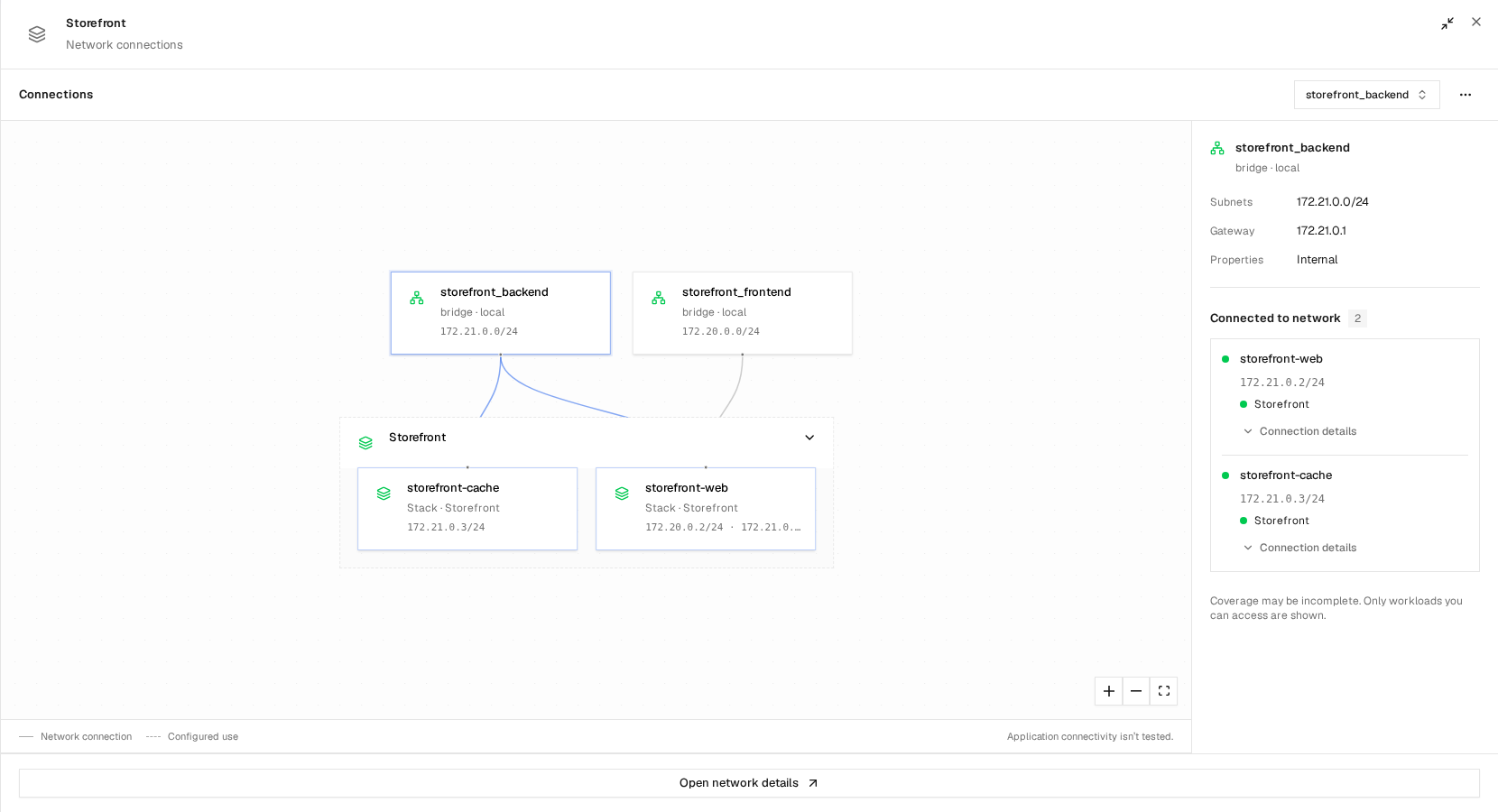
The expanded stack shows which containers share each network. Select a network to see its subnet, gateway, and connected containers.
Stack members are grouped; use the chevron to expand or collapse them. Selecting a resource shows its details and configuration links. The searchable Map selection control also provides keyboard access to every displayed resource. Workload icons use the same state colors as the resource lists; hover over an icon for its state. Network icons are green when in use and gray otherwise. Missing or stale state is shown as unknown.
Connected to network means Docker reports the container as attached. Solid lines show these connections. In Map options, enable Show configured workloads to include them with dashed lines, or choose Reset layout. Use the zoom controls and Fit view to navigate. Application connectivity isn’t tested: the map does not check whether applications can communicate.
Select Explore connections on a container to see its attached networks, addresses, aliases and published ports. Map options → Explore workload also lets you find a container by its name, Docker ID or owner, including containers using host, none or shared-namespace networking. Back to returns to the original network. Networks hidden by list filters or absent from inventory are identified in the details rather than treated as disconnected. Stopped containers retain their configured networks in the container graph when those networks are present in the authorized inventory. Dashed lines labelled Configured · Not attached distinguish them from active connections, and no active container address is shown. When attachment evidence is missing, the dashed line is labelled Attachment unconfirmed. Starting the container restores solid connections and active addresses when Docker reports its endpoints again.
The diagram follows realtime updates without polling and loads only when a sheet opens. Maximizing does not start another inspection. It displays at most 50 relationship records; workload search lists up to 500 accessible containers. Opening a container’s connections directly is independent of that search limit. Administrators can also inspect connections for containers whose saved Citadel owner no longer exists. Limited or stale coverage is marked. Swarm observations may cover only one node, and service configuration does not prove that its tasks are running.
Shared-namespace target details may be unavailable; Citadel does not infer a connection or VPN status from them.
Create a network
You need an online Platform and permission to create networks.
- Select Add Network and enter a name, such as
app-network. - For Docker Standalone, keep Bridge for a typical application network.
- Leave address allocation at its defaults unless you need a particular subnet or gateway. If you specify a subnet, avoid overlap with existing networks.
- Select Save and check that the network appears in the list.
On Swarm, choose Swarm scope and Overlay for a cluster network. Local manager scope creates a network only on the connected manager. Enable Attachable when standalone containers also need to join an overlay network.
Use the network
For a Deployment, select the network in its configuration, save, and deploy or redeploy. Creating the network alone does not attach an existing container.
For a Stack, Compose can create its own networks. To use the network you created above, declare it as external and attach the service:
services:
  web:
    image: nginx:alpine
    networks:
      - app-network

networks:
  app-network:
    external: true
This example joins a network without publishing a host port. Add a port mapping or connect your reverse proxy when the application needs access from outside it.
Inspect or remove a network
Use Inspect to review the driver, address allocation, and attached containers. If applications cannot communicate, check that they share the intended network and use the application's container port.
Delete is unavailable for system networks, networks in use, visible saved references or service memberships, and Node-specific network inventory. Remove workload references and redeploy affected workloads before deleting an unused network. For Swarm, also check Service attachments.
Citadel's network form creates networks; it does not edit an existing network's configuration. Create a replacement when its settings need to change.