 Citadel Docs
Git Stacks
Deploy and operate Docker Compose or Swarm Stack definitions sourced from Git.
Git stacks deploy Compose definitions from a Git repository as Docker Compose projects on Standalone Platforms or native Stacks on Swarm Platforms. They support repositories with one application and monorepos containing several independent applications.
Configure the Git repository and any required Git account before creating a Git stack. See Git repositories and accounts.
Use deployments instead when the workload is a single Docker container and does not need Compose. See Deployments.
Use web editor stacks instead when the Compose YAML should be stored and edited directly in Citadel. See Web Editor Stacks.
To import a Compose project that is already running and use a Git repository as its authoritative source, see Adopt existing workloads.
Deploy from a repository
You need a connected Platform and a repository that has synced successfully in Repositories. Ask the application's maintainer for its Compose file path.
- In Repositories, connect the repository and confirm its initial sync succeeds. For private source, configure its Git Account first.
- Open Stacks, select Add Stack, enter a name, and choose Git as the source.
- Select the Platform, repository, and branch. Leave Commit empty to track that branch, or enter a commit SHA for a fixed revision.
- Select the application's Compose paths in order: base file first, then overrides. Select any repository environment files it requires. The simple repository example below shows the minimum setup.
- Review missing variables and secrets on Bindings and fix reported errors. Keep update behavior Disabled or Notify Only while validating the first deployment.
- Select Save, then Deploy. Wait for the operation to finish and check the Services tab, application logs, and application endpoint.
- Record the deployed commit from Config → Source files or the release's source details. This is the revision to use if you need to return to this deployment.
Pulling new Git code does not automatically deploy it unless an automatic update policy is enabled. Start with manual deployment while you check the configuration.
Review and deploy an update
Use this workflow with Disabled or Notify Only update behavior and no deploy webhook. Repository sync executes configured On Clone / On Pull hooks on Core; generated working-tree files are not included in Stack inputs. It can trigger other Stacks whose automatic deployment policies are enabled.
- Commit and push the application change to the selected branch.
- Synchronize the repository in Repositories to refresh its cached source. On the Stack, select Check for updates to record relevant changes for that Stack. The check itself does not deploy or run repository hooks.
- In Config → Source files, compare the deployed and latest synchronized source. Compare and source browsing also require Git Repository Read access.
- Review changed Compose paths, bindings, and images. Save any Stack configuration edits, then select Deploy or Redeploy when ready.
- Check the operation result, service health, and application behavior. Confirm the deployed commit in source details after the operation succeeds.
A branch can advance between the check and deployment. To apply precisely the revision you reviewed, set Commit to its SHA and save before deploying. A pinned Stack does not track later branch updates until you clear Commit. For recovery, follow Rollback; a saved release alone does not pin an otherwise unpinned branch to its historical commit.
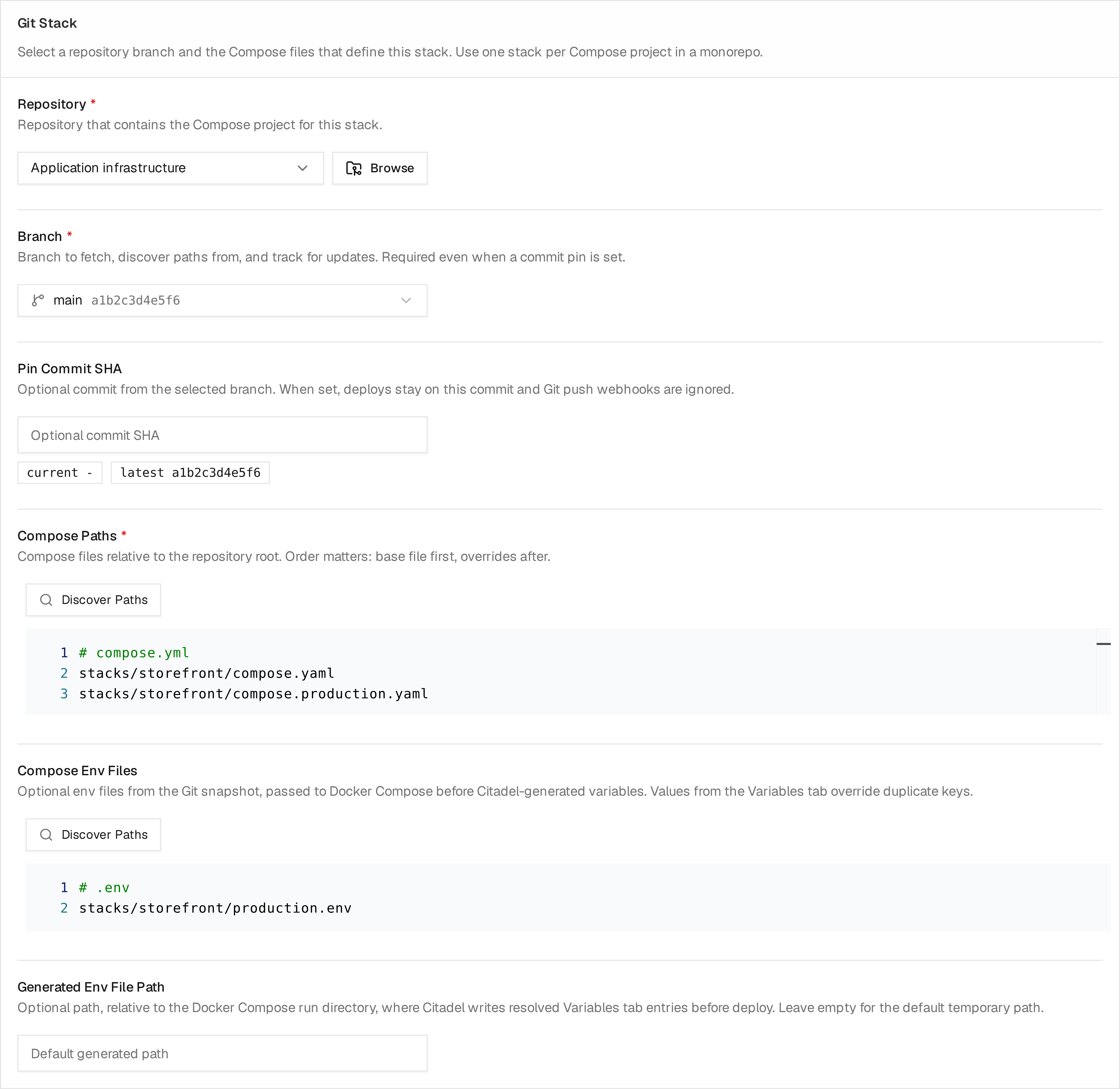
Example configuration for a demo Storefront application. The base Compose file comes before its production override; the environment file belongs to the same application. Paths are relative to the repository root. Select the image to enlarge it.
Simple Repository
Use this setup when the repository contains one compose project.
Example layout:
compose.yml
.env
Recommended stack configuration:
- Source:
Git - Repository: the linked Git repository
- Branch: select one of the synced repository refs, such as
mainormaster - Commit: empty, unless you want to pin this stack to one immutable commit
- Compose paths:
compose.yml - Compose env files from repo:
.env, if the compose project uses it - Working directory: empty, or
. - Watch paths: empty
With watch paths empty, Citadel watches the compose file, repo env files, and the inferred compose working directory. When the repository branch moves to a new commit, Citadel compares the running release commit with the branch head and marks the stack outdated only when relevant files changed.
Path rules:
- Paths are relative to the repository root.
- Absolute paths are rejected.
..path traversal is rejected.- Compose paths and repo env file paths must point to files.
- Watch paths may point to a file, a directory prefix, or a
path/**subtree. - Empty watch paths are usually best unless the stack depends on shared files outside its compose directory.
If the repository has already been synced, the stack form shows branch refs from the repository cache. It also shows the current deployed commit and the latest synced commit for the selected branch, so you can tell whether the stack is behind before deploying.
Use Discover compose paths to scan the selected repository branch and select the Compose files for this stack. Discovery suggests paths; it does not create stacks or automatically select all discovered files.
Inspecting Deployed Source
After a Git Stack is saved, its Config tab includes Source files. This panel shows:
- the linked repository and branch;
- the exact deployed commit;
- the latest synchronized commit for that branch;
- Compose and repository env files used by the deployed release.
Before the first deployment, the panel can browse the latest synchronized revision from the saved repository and branch. Deployed source paths and comparison become available after the first successful deployment.
Use Browse deployed source to inspect the immutable revision that produced the current Stack. Use Browse latest source to inspect the latest locally synchronized revision without applying it. Stack Read permission does not grant repository source access; Git Repository Read permission is also required.
When the deployed and latest commits differ, Compare lists repository-wide path changes and opens supported text files in a read-only diff. Compose and repository env paths used by the Stack are highlighted. Added, deleted, renamed, and copied files use the appropriate old and new paths.
The source browser remains bound to persisted source settings while the Stack form has unsaved repository, branch, commit, Compose path, working directory, or env-file changes. Save the Stack before browsing the updated configuration.
Browsing and comparison use the local Git object database. They do not synchronize the repository, run hooks, deploy the Stack, or change update state. See Git repositories and accounts for content and cache limitations.
Git source requirements
Normal Git Stack deployment materializes the full committed tree on Core,
limited to 512 source entries/files and 12 MiB. This applies to Local,
Direct Agent, and Edge execution on Standalone and Swarm Platforms. Unrelated
committed monorepo files count: Compose paths, working directory, watched paths,
and .dockerignore do not narrow this snapshot. .git internals and untracked
working-tree files are outside the committed tree.
Committed symlinks and submodules are unsupported in this Git Stack materialization path. This is not a general restriction on repository browsing or Build workflows. Repository sync and browsing may succeed before Stack materialization fails. Use a smaller deployment repository when necessary; changing only the Compose working directory does not solve a full-tree limit.
After the Git check, Core adds generated ownership content such as
.citadel/citadel.labels.yml. Agents check the complete transported bundle
against 512 files / 12 MiB again. Generated files consume that capacity: exactly
512 committed files, or source near the byte limit, may pass Core's Git check
but fail the final Agent check. Leave headroom; a repository at the numerical
maximum is not guaranteed to deploy through every connector.
Monorepo
Use this setup when one repository contains multiple compose projects.
Example layout:
stacks/
  demo-app/
    compose.yml
    .env
  caddy/
    compose.yml
shared/
  networks.yml
Create one Citadel stack per Compose project:
Demo App stack:
- Compose paths:
stacks/demo-app/compose.ymlshared/networks.yml, if the compose file depends on it
- Compose env files from repo:
stacks/demo-app/.env
- Working directory:
stacks/demo-app
- Watch paths:
- empty for the default, or explicitly:
stacks/demo-app/**shared/networks.yml
Caddy stack:
- Compose paths:
stacks/caddy/compose.yml
- Working directory:
stacks/caddy
- Watch paths:
- empty, or
stacks/caddy/**
- empty, or
This keeps unrelated monorepo commits quiet. A change under stacks/caddy should not mark the Demo App stack outdated unless Demo App explicitly watches that path.
For monorepos, use Discover compose paths after selecting the repository and branch. Citadel recognizes .yml and .yaml filenames containing compose separated by dots, hyphens, or underscores, such as docker-compose.yaml, sample-app-compose.yaml, app-compose-prod.yml, and app.compose.yml. Matching is case-insensitive.
Environment file discovery recognizes .env, .env.production, demo-app.env, and sample-app.env.local alongside each project's Compose files. These are suggestions; select only the files needed by the stack.
Separate folders are optional. A Citadel stack maps to one Compose project: when Demo App and Sample App have separate Compose files at the repository root, create two stacks and select the corresponding file for each.
Compose path order matters. Put the base compose file first and override files after it:
stacks/demo-app/compose.yml
stacks/demo-app/compose.override.yml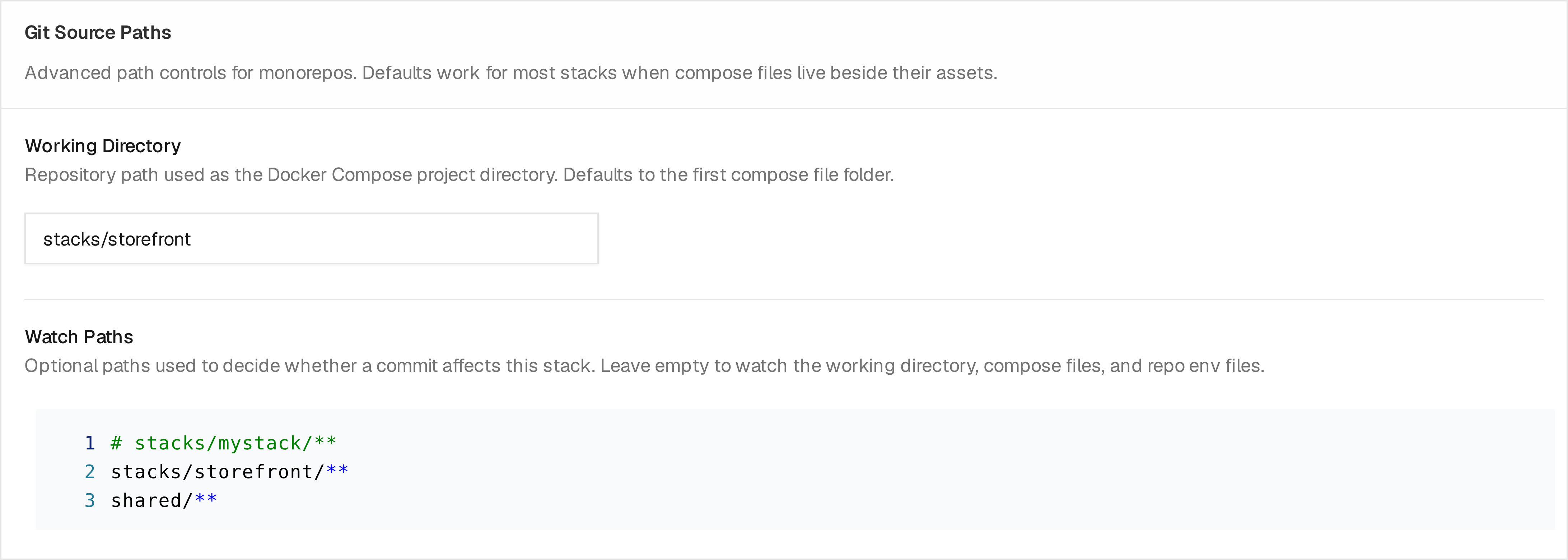
This demo Stack explicitly watches its application folder and shared/**.
Add shared paths only when changes there should mark the Stack outdated; leave
Watch Paths empty to use the defaults described above.
Update Policy
For branch-tracking Git stacks, Citadel stores the exact deployed commit in the stack release source metadata.
- Notify Only: mark the stack outdated and emit an alert for relevant Git changes or service image updates.
- Auto Deploy Stack: automatically reapply the stack when relevant Git paths change or a service image update is detected.
- Auto Deploy Services: unavailable for Git Stacks. A Git commit can affect networks, volumes, env files, and dependencies.
- Disabled: disable periodic checks; manual checks remain available.
Notify and update detection remain available in Community. Automatic
deployment caused by repository or image changes requires
Operational Guardrails and Automated Operations. Deployment caused by an external webhook requires
Automated Operations.
Image checks run every two hours, like Deployments, using the shared registry scanner and the Compose files at the applied Git commit. Configure a Registry on the Stack to check tagged service images. Digest-pinned images, unresolved image variables, and services supplied by Citadel Builds are excluded. Image-triggered automatic updates pull images while retaining the applied Git revision; they do not fetch the branch. Image checks ignore changes only to other architectures or image attestations. Git synchronization remains controlled by the repository's sync policy, including Manual mode.
A Registry is optional for Git-only updates. If a Stack is pinned to a commit and has no Registry, Check for updates opens a Registry selection dialog. Save Registry and check saves the selection and checks its service images.
Pinned stacks set Commit to a SHA. They do not track branch updates and webhook
deploys are ignored, but their tagged images can still receive updates.
Use Check for updates on a Git Stack to query the Git remote immediately and compare relevant paths with the deployed commit, and inspect supported service images immediately. Pinned stacks check only images. The check records update state for that Stack only; it does not apply the Stack, run repository hooks, emit an alert, or process other Stacks that use the same repository. It remains available when periodic update behavior is disabled.
On Docker Standalone, use Reconcile drift separately to compare the saved Stack definition with running containers. Container drift reconciliation is not available for Swarm Stacks.
On the Stacks page, use Updates available to show only stacks with a newer relevant commit or detected service image update. The filter works with search, tags, and the Platform filter.
Build Images
Use Build Images when a Compose service should use an image produced by a Citadel build project.
For each service binding:
- Compose Service: exact service name from the Compose files
- Build: build project that produces the service image
- Redeploy On Build: automatically reapply that service after the selected build succeeds
Redeploy On Build requires Automated Operations.
When the stack is applied, Citadel uses the desired artifact stored on each binding and writes a generated Compose override file. A binding without a resolved artifact falls back to the latest successful build. The override is added after the repository Compose files so the build image replaces the service image from Git without changing the repository.
You can save bindings before the first successful build, but apply fails until each selected build has a successful image.
When a mapped build succeeds later, Citadel updates the binding's desired image reference and digest. If Redeploy On Build is enabled, Citadel reapplies only the mapped service. Applied state changes only after that apply succeeds.
Service-scoped deployment is supported only for Docker Standalone Stacks. For a Swarm Stack, leave Redeploy On Build disabled and deploy the complete Stack manually after the desired build image changes.
For build setup and webhook-triggered builds, see Builds.
Webhooks
Repository webhooks trigger repository sync. Git stack webhooks trigger deploy for that stack.
Repository synchronization and pending-update detection remain Community.
Applying the stack from the webhook requires Automated Operations.
For the shared listener model, authentication options, URL shape, and troubleshooting, see Webhooks.
For Git stacks, webhook deploy still validates:
- provider authentication, if a secret is configured
- repository identity
- branch filter
- stack is Git-backed
- stack is not pinned
- changed paths, when the provider payload includes them
If the provider payload includes changed paths and they only touch unrelated monorepo paths, Citadel returns a no-op response without deploying or creating an activity entry.
If the provider payload does not include changed paths, Citadel syncs the repository branch, diffs the running release commit against the new branch head, and applies the same watch-path decision. This keeps Git providers or proxy payloads that omit file lists usable without blindly redeploying every stack in a monorepo.
Webhook activities record queued work, rejected requests, and configuration skips. Routine checks with no new commit or relevant changes, filtered branches, and unsupported events stay out of activity history; their reason remains in the webhook response. Recorded activity details include the request id, provider event, delivery id, branch, commit, repository identity, and skip reason when one exists.
Forgejo and Gitea
Forgejo and Gitea can use the GitHub-compatible webhook mode.
- In Citadel, enable the GitHub provider webhook and generate or enter a secret.
- In Forgejo or Gitea, use the Citadel webhook URL from the stack or repository form.
- Put the Citadel secret in the provider webhook secret field. Do not put it in the Authorization header.
- Use the push event.
Citadel accepts GitHub X-Hub-Signature-256 signatures and the GitHub-compatible X-Gitea-Signature / X-Forgejo-Signature HMAC-SHA256 headers.
Rollback
Rollback reloads the selected healthy release's saved Stack configuration, including its repository, branch, Compose paths, and any explicit Commit. The current Rust implementation does not automatically use the deployed commit recorded in release source metadata. If the selected release was tracking a branch with Commit empty, rollback can deploy that branch's current head.
To redeploy an exact earlier revision:
- Open Releases and find the healthy release you want to recover. Copy its deployed commit SHA from source details.
- In Config, set Commit to that SHA. Review the repository, Compose paths, environment files, and bindings needed by that revision, then save.
- Select Deploy or Redeploy. The commit must still be available to Citadel.
- Verify service health and application behavior, then confirm the deployed commit matches the selected SHA.
Keep Commit pinned while diagnosing the regression. Clear it and save only when you intend to resume branch tracking and the configured update policy.
Rollback does not restore application volumes or historical secret values. Review bindings, image references, and external Docker Secrets or Configs before deploying an older revision.
Automatic-update activity reports the commit actually applied. If the branch advances between an update check and deployment, this can be newer than the commit shown by the earlier check.