 Citadel Docs
Access control
Manage Citadel users, Teams, Roles, Service Accounts, permissions, and resource overrides.
Citadel combines role-based access control (RBAC) with resource-level access control lists (ACLs) to support the principle of least privilege: grant Users and Service Accounts only the permissions they need.
- Users are people who sign in to Citadel.
- Teams group Users and Service Accounts so they can inherit the same access.
- Roles define reusable permission sets.
- Resource access grants additional access to a specific resource.
Permissions are additive. Prefer a purpose-specific Role and narrowly scoped resource access instead of assigning the built-in Admin Role.
Add a teammate
- As an administrator, open Access → Users and add a User.
- Enter a unique username, email, and initial password; leave Enabled on.
- Select the intended Roles and Teams, or use the single-resource grant below. Review the license requirements before expanding access.
- Save and give the person their credentials through a private channel. Have them sign in, change the password through Profile, and enroll in MFA if required.
For shared access, create an enabled Team under Access → Teams, assign its Roles and Users, and save. Members inherit the Team's grants in addition to their own. Company sign-in can instead provision accounts through OIDC.
Configure a Role
Open Access → Roles and select a Role to inspect its Permissions Matrix. Choose a permission Level for each resource type and review its optional Capabilities separately. Assign the Role to the Users or Teams that need it.
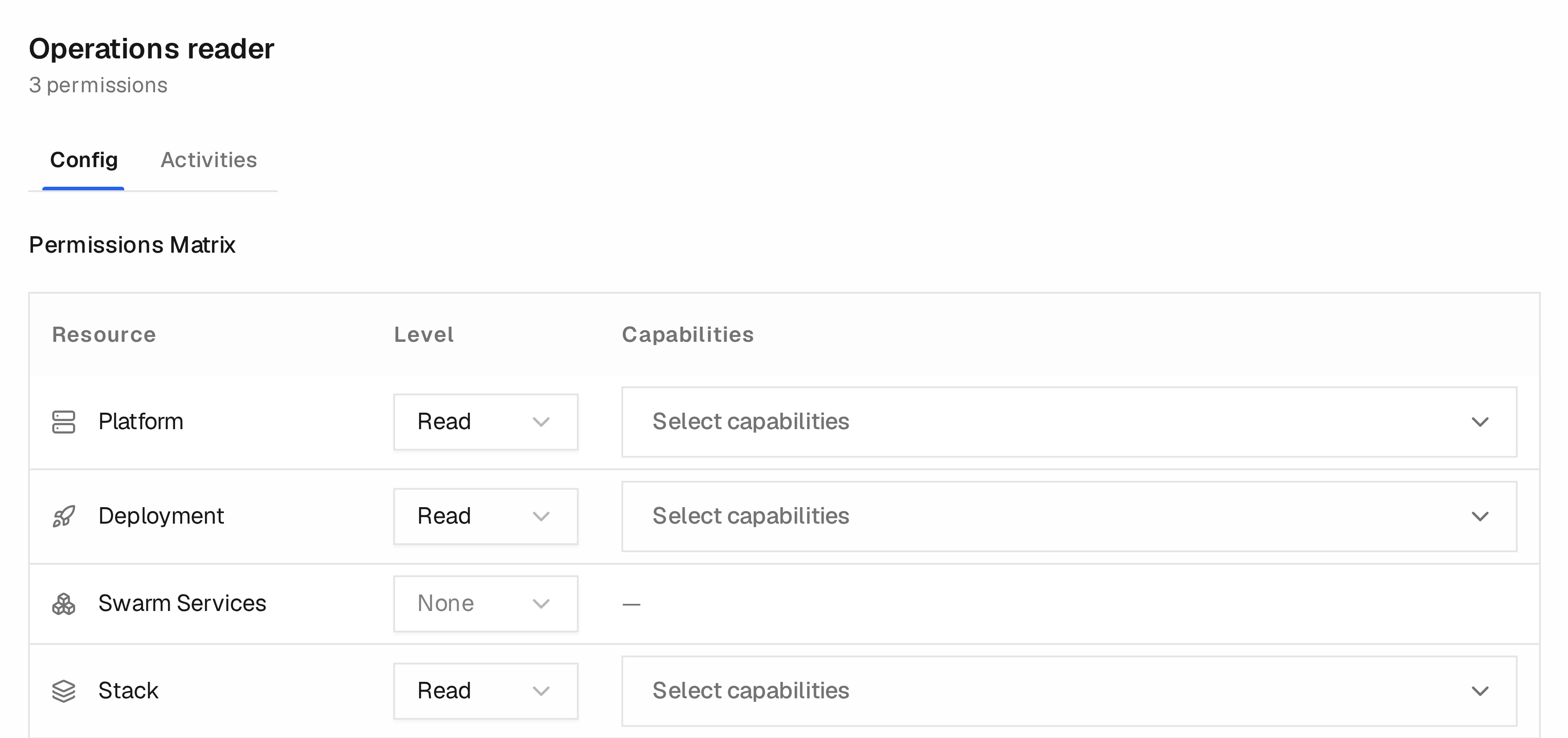
This excerpt uses a demo Role with Read access to Platforms, Deployments, and Stacks. No additional capabilities are selected. None means this Role grants no access to that resource type; another Role or resource access grant may still provide access because permissions are additive.
Custom Roles require Team's Custom access control capability. Built-in System Roles can be inspected but cannot be edited.
Roles and resource overrides have different scopes
A Role grants permissions for a resource type, such as Backup Policies.
A resource override grants permissions for one existing resource, such as
the Forgejo daily Backup Policy. Roles can be assigned directly or inherited
through an enabled Team.
Creating a resource requires Write permission for its resource type through a Role. A Write override lets the user edit that existing resource; it does not grant permission to create another one.
For example, a user with Write overrides on the Forgejo daily policy and the
daily repository can edit those resources while Add Policy remains disabled.
To let the user create policies, assign a Role with Backup Policy → Write.
Creating repositories separately requires Backup Repository → Write.
These Role permissions apply across the resource type, so review the intended
scope before granting them. Access to dependencies, such as the selected backup
repository and source, is also required.
Grant Access to One Resource
This example lets a teammate read the Storefront Stack and its logs while
keeping other applications inaccessible. You need administrator access and
Team's Custom access control capability to create or expand the grant.
- Open Access → Users and select the teammate, or create their account first.
- On Config, review Roles and Teams. Use an account without Admin or broad Stack permissions. Remove assignments that grant wider access than intended; resource overrides cannot subtract inherited permissions.
- Choose Advanced → Overrides → Grant Access and select the Stack resource type.
- Give only
Storefrontthe Read level and select Logs. Leave capabilities such as Terminal and Resource Bindings unselected unless they are needed. - Save the dialog, then save the User form.
- In a separate browser session, sign in as that teammate and verify the access described below. Keep your administrator session available for corrections.
Do not add a Role with Read access to all Stacks just to make this one Stack visible. For several teammates with the same responsibilities, review Team assignments so their access stays consistent.
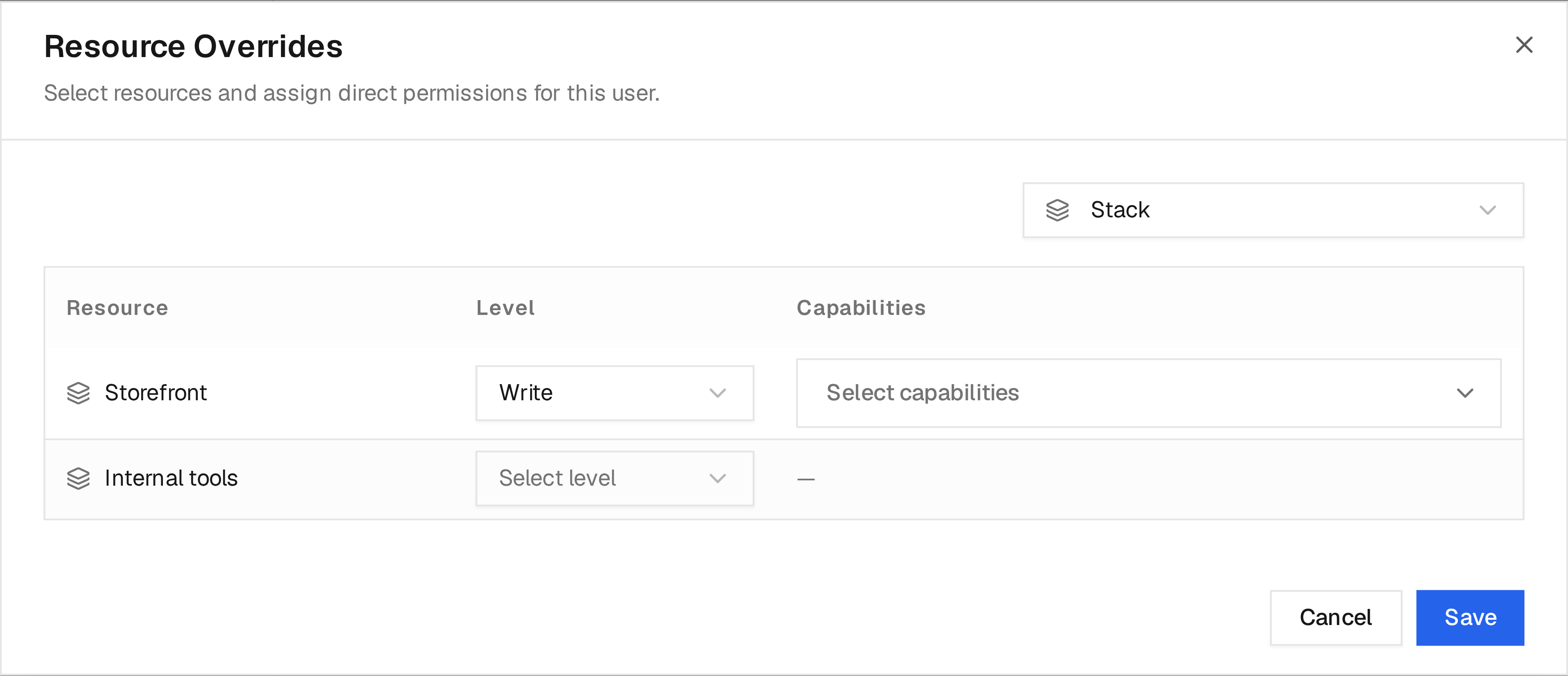
This screenshot shows a different, additive example: an Operations reader
receives Write on Storefront. That user retains inherited Read access to
other Stacks. For the single-application workflow above, use Read with Logs
and remove broader assignments.
Existing grants can still be reduced or removed without the Custom access control capability.
Verify the teammate's access
Check both the permitted task and the intended boundaries:
| Check | Expected result for the example above |
|---|---|
Open Storefront | The Stack is visible and its details can be read |
| Read its logs | Logs are available |
| Save configuration or deploy | The action is unavailable or denied |
| Open a terminal or edit bindings | The action is unavailable or denied |
| Open an unrelated Stack, including by its URL | Access is denied or the resource is not found |
If the user has more access than expected, inspect every assigned Role, Team, and direct grant. Setting one entry to None removes that entry's grant; it does not override access from another source. If access is missing, check the account is enabled and that both the dialog and User form were saved.
If an Add button is disabled even though the user can edit an existing resource, check their assigned Roles and Team Roles for Write permission on that resource type. A resource override alone does not enable creation.
General permission levels and additional capabilities serve different purposes. For example, Stack logs require Read + Logs, while deployment and rollback require Execute + Apply. Execute also permits other lifecycle operations, including deletion; review the permission matrix before expanding access. Browsing a Git Stack's repository source additionally requires Git Repository Read access.
Use Service Accounts for unattended integrations; they use the same permission model but cannot sign in through the browser.
Review Access Changes
When a person leaves, disable their User and review Team memberships and direct grants. Check Scripts and Backup Policies that run as that User; move required unattended work to a suitably scoped Service Account. Disabling one User does not revoke credentials belonging to a separate Service Account.
The Activities tab on a User, Team, or Role records the administrative changes that affect that resource:
- creation;
- configuration or access-assignment changes;
- rename;
- deletion.
The main Activities page can be filtered by User, Team, or Role. These identity activity records are visible only to administrators.
Activity records contain the affected enabled state, assignment identifiers, and permission levels needed for an audit. Citadel does not record passwords, password hashes, MFA secrets, API tokens, or other credential values in these events.